You've installed a caching plugin. Compressed your images. Maybe even paid for a "speed optimisation" service. And your WordPress site is still slow.
Here's the thing most speed guides won't tell you: if your hosting infrastructure is the bottleneck, no plugin on earth will fix it. Plugins run after the server has already responded. If that response takes 800 milliseconds before a single line of HTML reaches the browser, you're fighting with one hand tied behind your back.
We've been running WordPress hosting since 2002. In that time, we've diagnosed thousands of slow sites. The pattern is always the same: people optimise the wrong things first. They start with images and plugins (the top of the stack) when the real problem is sitting at the bottom, in the hosting layer.
This guide walks you through the actual causes of a slow WordPress site, in the order they matter most. Grab your site's URL and follow along.
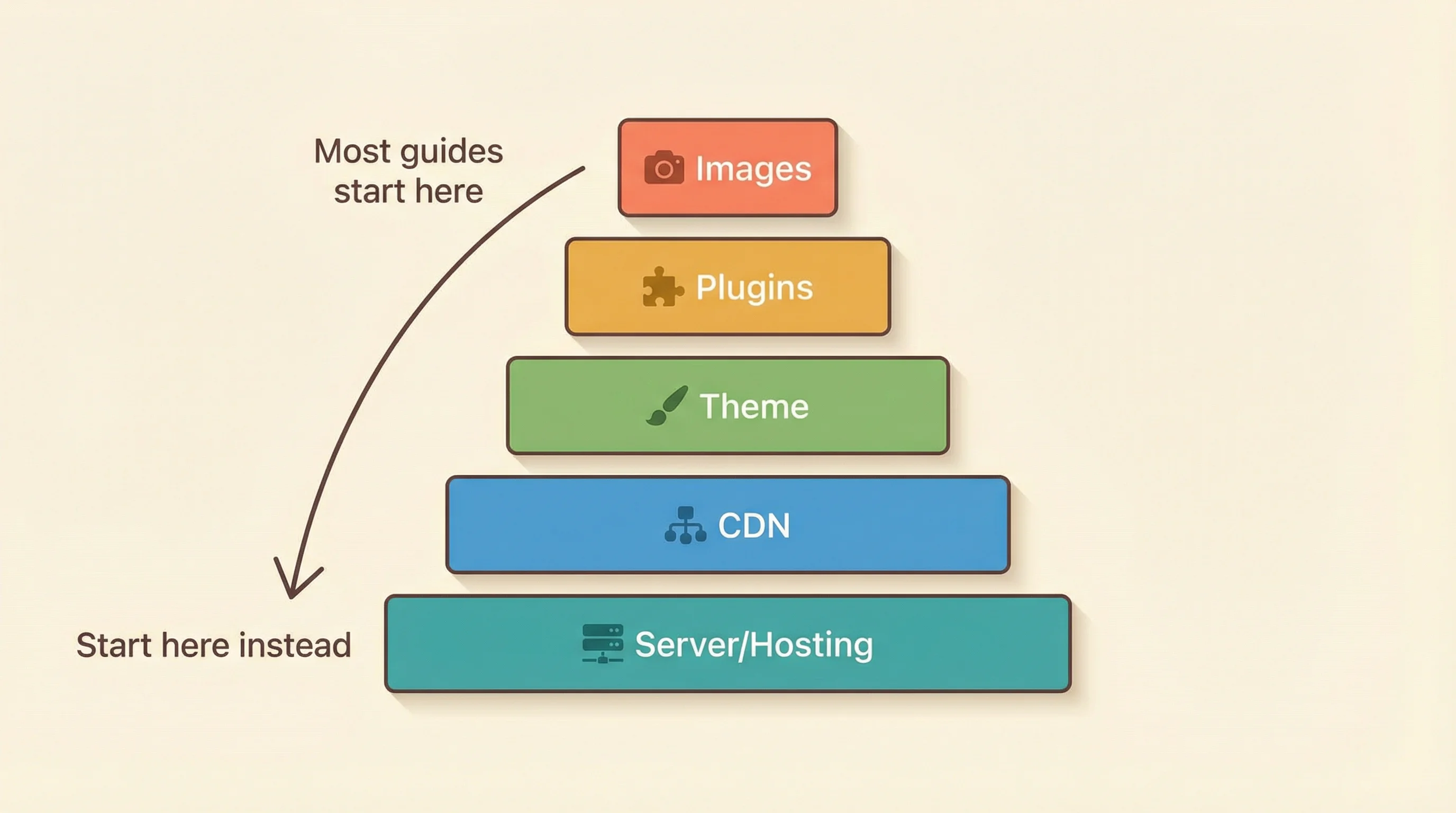
The Speed Stack: Why Order Matters
Think of your WordPress site as a stack of layers. Each one adds time to the total page load:
- Server/Hosting (TTFB, PHP processing, database queries)
- CDN and caching (serving static files from the edge)
- Theme and page builder (DOM size, render-blocking CSS/JS)
- Plugins (additional PHP execution, HTTP requests)
- Images and media (file size, lazy loading)
Most speed advice starts at layer 5 and works down. That's backwards. The server layer is the foundation everything else sits on. If your TTFB (Time to First Byte) is 800ms on shared hosting, even a perfectly optimised front end still can't load in under a second.
According to HTTP Archive data, only 32% of WordPress sites pass the recommended TTFB threshold. By comparison, 95% of Shopify sites pass it. The difference isn't WordPress itself. It's the hosting underneath it.
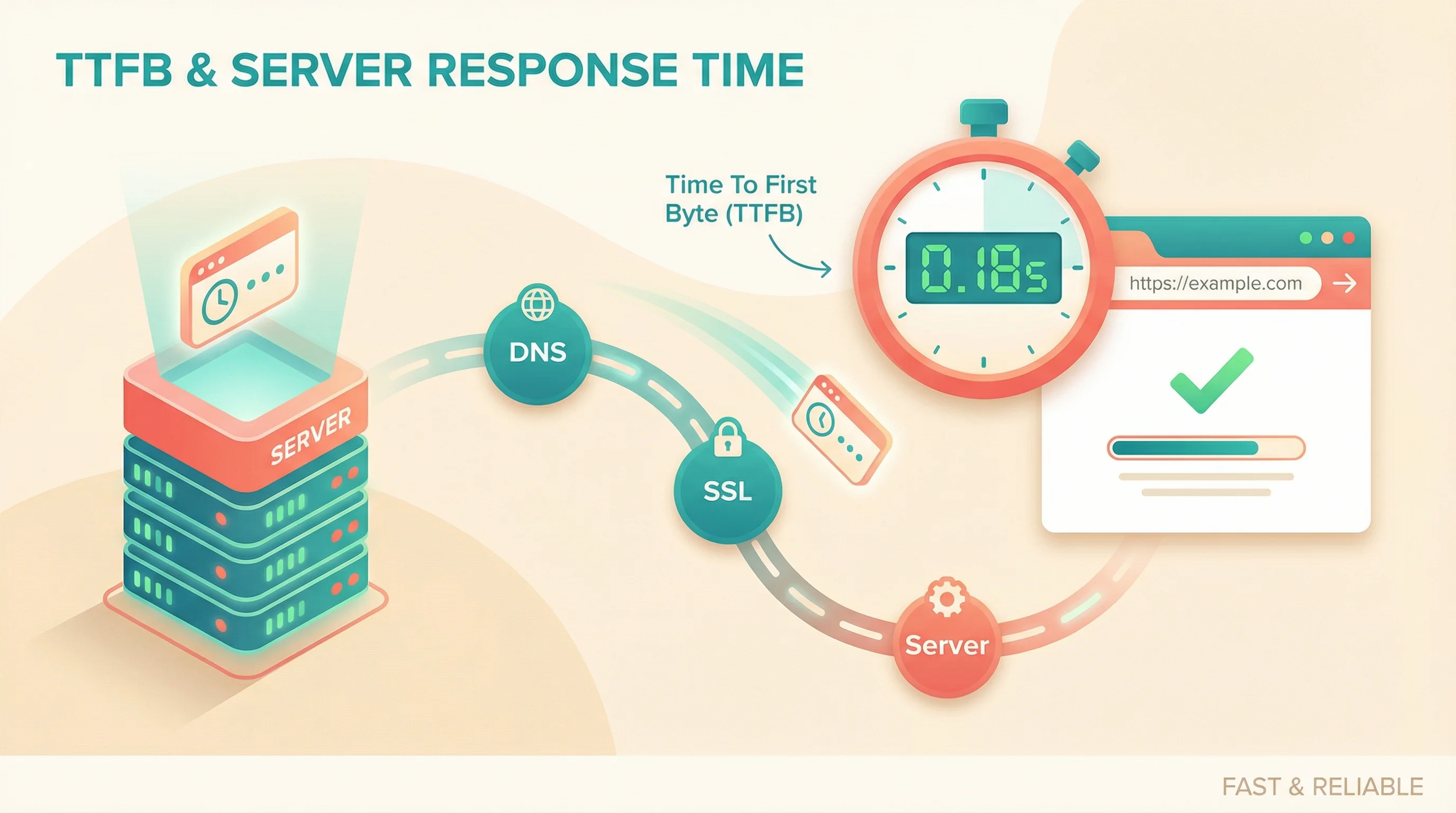
Check 1: Your Server Response Time (TTFB)
TTFB stands for Time to First Byte. It measures how long your browser waits before the server starts sending the page. You can think of it as the server's "thinking time" before it even begins delivering your site.
Testing it takes about ten seconds. Open our free HTTP Header Inspector, type in your URL, and look at the response time. Here's what the numbers mean:
| TTFB | What It Means |
|---|---|
| Under 200ms | Excellent. Your server isn't the problem. |
| 200ms to 500ms | Acceptable, but there's room to improve. |
| 500ms to 800ms | Slow. Likely a hosting issue, especially on shared servers. |
| Over 800ms | Your hosting is the bottleneck. Full stop. |
Managed WordPress hosting typically delivers TTFB between 100ms and 350ms. Shared hosting? More like 400ms to 800ms, sometimes worse during peak hours when you're sharing CPU with hundreds of other sites.
"You can optimize plugins, compress images, and implement every trick in the book, but if your hosting is slow, your site will be slow. Period."
Brian Jackson, Co-founder of Perfmatters
That quote landed differently when I read it the first time. We'd been helping a customer who'd spent months optimising their theme, removing plugins, and compressing every image on the site. TTFB was still over 700ms. Moved them to managed hosting. TTFB dropped to 140ms the same day. The plugins were never the problem.
Check 2: PHP Workers and Request Queuing
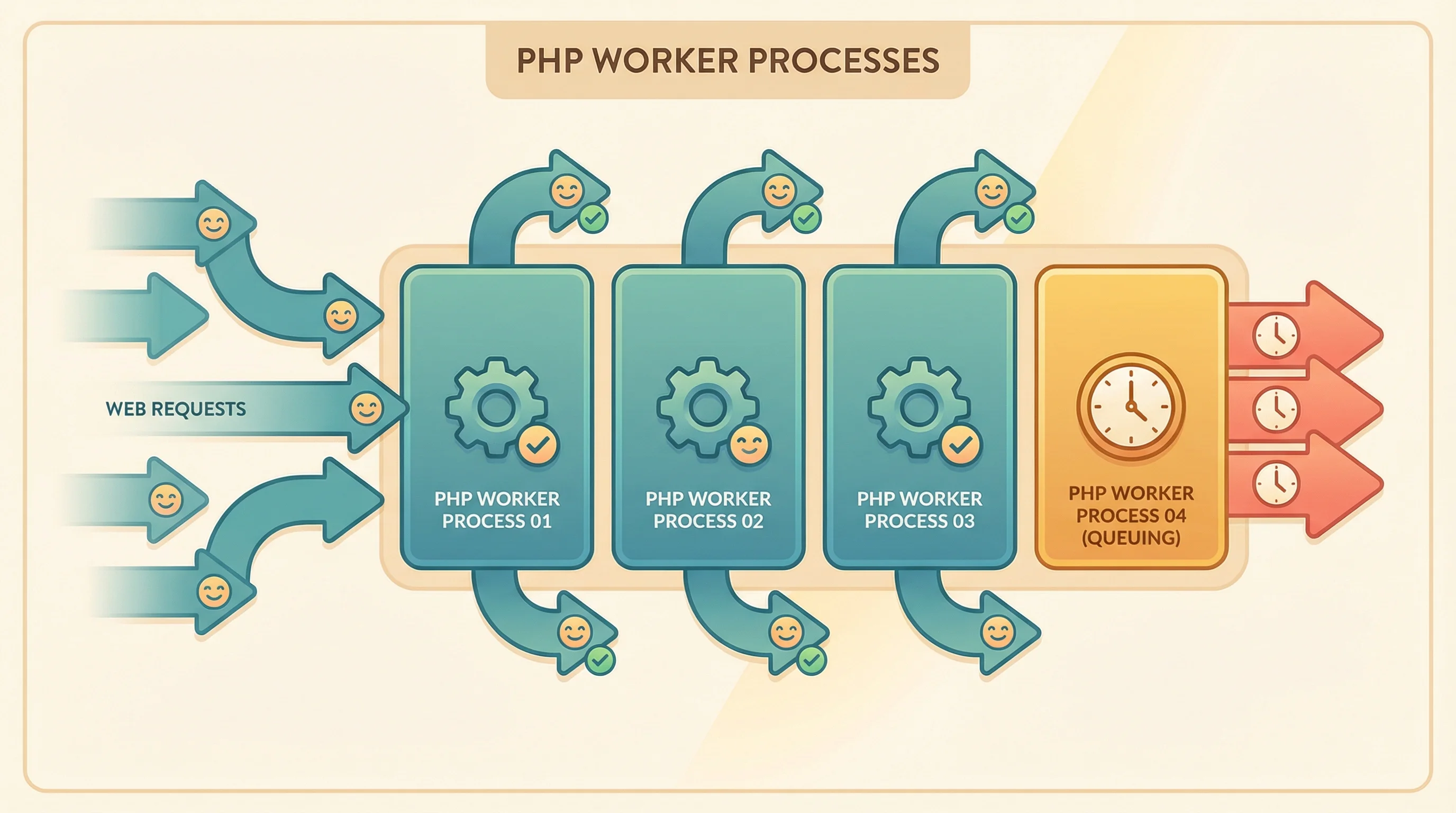
Every time someone visits your WordPress site, the server assigns a PHP worker to build that page. The worker runs your theme code, executes plugin functions, queries the database, and assembles the HTML. Once it's done, it moves on to the next request.
The problem: you have a limited number of PHP workers. On budget shared hosting, you might have two or three. If four people visit at the same time, one of them waits. If ten people visit, seven of them wait. That "waiting" is what makes your site feel frozen, even though the server isn't technically "down."
Signs that PHP workers are your bottleneck:
- Your site is fast at 2am but slow at 2pm
- Pages load quickly when you test alone, but customers complain about speed
- Admin pages (wp-admin) become sluggish during busy periods
- You see 503 errors during traffic spikes
The fix isn't always "buy more workers." Slow plugins and unoptimised database queries keep workers busy for longer than they should be. One badly coded plugin that takes 3 seconds per request ties up a worker that could have served 15 cached pages in the same time. That's why our WordPress speed guide recommends fixing the server layer first, then cleaning up what runs on it.
Check 3: The PHP Memory Limit Mistake Everyone Makes
This one catches people out constantly. A plugin throws a "memory exhausted" error, so you Google the fix and find advice telling you to increase your PHP memory limit. Makes sense, right? Give PHP more memory, problem solved.
Except the advice usually says "set it as high as possible." And that's where the trouble starts.
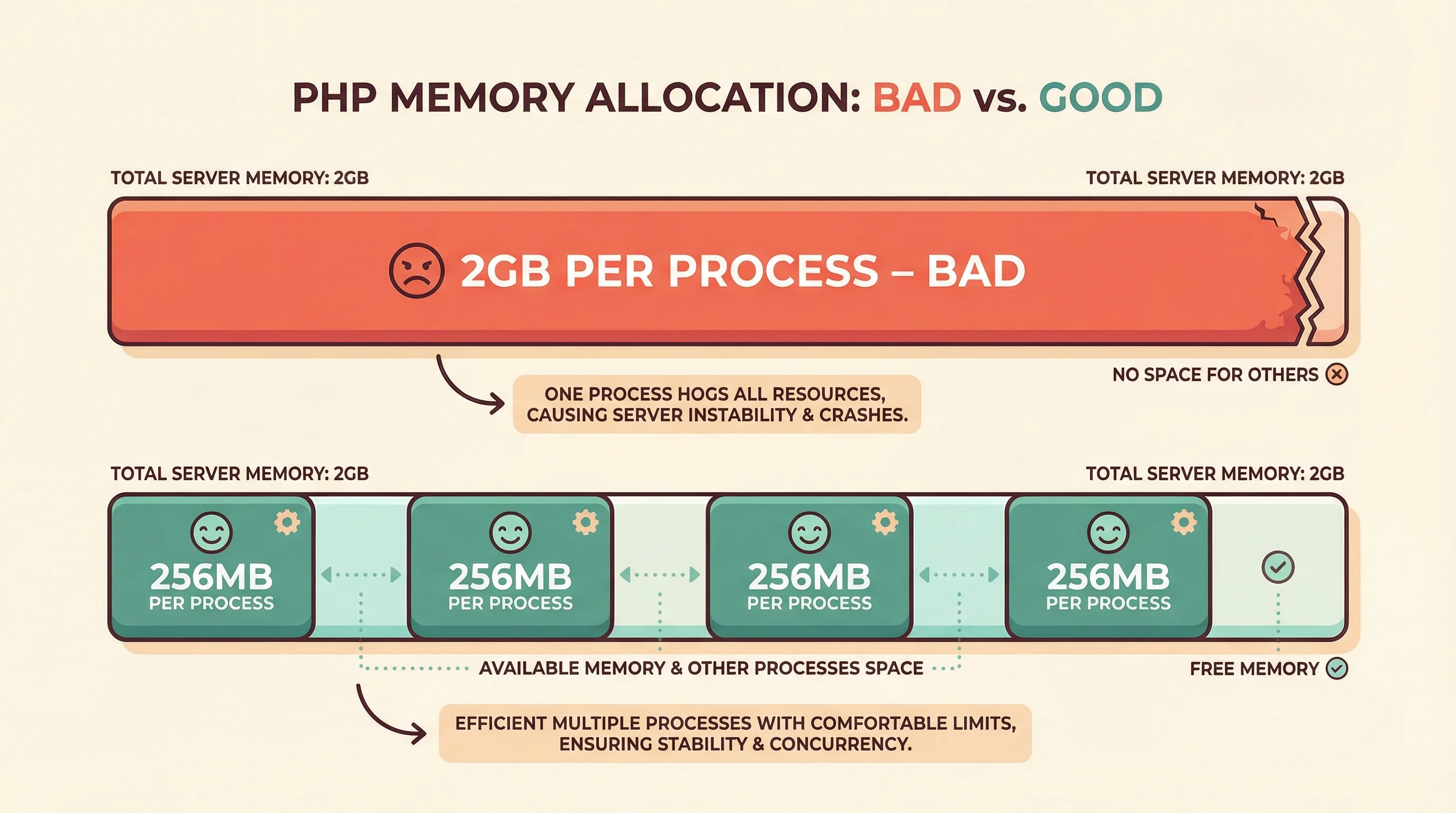
PHP memory limit is a per-process ceiling, not an allocation. Every request to your site gets its own PHP process, and each one can use up to whatever limit you've set. A normal WordPress page load uses about 40-80MB of memory regardless of the limit. On 365i, each hosting package has a maximum of 2GB of available memory. We regularly see customers who've set their PHP memory limit to 2GB, thinking bigger is better.
Under normal conditions, those requests still only use 40-80MB each. The problem shows up when something goes wrong. A plugin with a memory leak. A bulk import that loads an entire database table into memory. A badly coded query that spirals out of control. With the limit set to 2GB, that runaway process is allowed to consume all your available memory before PHP kills it. One rogue request takes down the entire site.
Set the limit to 256MB and PHP kills the runaway process at 256MB instead. The remaining memory stays available for the other requests that are behaving normally. Your site stays up. The broken plugin gets flagged instead of silently swallowing all your resources.
The sweet spot is 256MB to 512MB. Go higher only if a specific plugin genuinely needs it (and check whether that plugin has a memory leak before you accommodate it). WooCommerce shops with large product catalogues sometimes need 512MB. A standard WordPress blog with a page builder? 256MB is plenty.
A high memory limit doesn't make your site faster. It just gives broken code more room to cause damage before it gets stopped. It's one of the most counterintuitive things about WordPress hosting, and one of the most common mistakes we fix in support.
Check 4: Which PHP Version Are You Running?
This takes 30 seconds to check and can make a measurable difference. PHP 8.5 is roughly 23% faster than PHP 8.3 in real WordPress tests, with TTFB dropping 12-14% on identical content.
Despite that, a surprising number of sites still run PHP 8.1 or even 8.0. Some hosts don't make it easy to upgrade, and some site owners worry about compatibility. But PHP 8.1 reached end of life in December 2025, so if you're still on it, you're running unsupported software that's also slower than it needs to be.
Check your PHP version in your hosting control panel. If it's below 8.3, upgrade. Most well-maintained WordPress plugins and themes work fine on 8.5. Test on a staging site first if you're nervous, but the performance gain is real and immediate.
Check 5: Database Bloat
WordPress stores everything in a MySQL database: posts, pages, comments, plugin settings, transient caches, post revisions. Over time, this database grows. And a bloated database means slower queries, which means slower pages.
The usual culprits:
- Post revisions: WordPress saves every edit you make. A post with 50 revisions has 50 copies in the database. Multiply that across hundreds of posts and pages.
- Expired transients: Plugins store temporary data (API results, cache fragments) as transients. Many don't clean up after themselves.
- Orphaned metadata: Delete a plugin, and its settings often stay behind in the options table forever.
- Spam comments: If Akismet is catching spam but you never empty the spam folder, those comments accumulate in the database.
A plugin like WP-Optimize can clean up revisions and transients. But the bigger point is this: a well-hosted WordPress site on NVMe storage with proper database indexing handles a larger database much better than the same data on a cheap server with spinning disks. The hosting layer, again, sets the ceiling.
What Matters Less Than You Think
Speed guides love listing 20 optimisations. Most of them make a marginal difference compared to the five checks above. Here are the most overhyped ones:
Plugins aren't usually the villain. A WordPress site with 30 well-coded plugins can be faster than one with 5 poorly coded ones. The number of plugins matters far less than the quality of the code inside them. Don't delete plugins you need just because someone told you "fewer plugins = faster site."
Image optimisation only helps after the server responds. Compressing a 200KB image down to 80KB saves 120KB of transfer time. That's real, but it's measured in tens of milliseconds. If your TTFB is 800ms, you've already lost the race before the images even start loading.
A CDN doesn't fix slow hosting. CDNs serve static files (images, CSS, JavaScript) from servers closer to the visitor. That's useful. But the HTML document itself, the actual page, still has to be generated by your origin server. If your origin server is slow, the CDN can't help with the most important part. Our 365i CDN includes edge caching for static assets, but the real speed comes from the hosting platform underneath it.
"The WordPress Performance team includes some of the world's very best frontend performance engineers, who jointly made WordPress much faster. But the 'hosting gap' remains the biggest reason users feel the platform is slow."
Joost de Valk, Founder of Yoast
That resonates with what we see in support every week. WordPress 6.9 brought genuine speed improvements at the application level. But they only benefit sites where the server is already doing its job. If your TTFB is bad, those improvements are invisible.
What Good Hosting Actually Does Differently
Not all hosting is equal, and the differences that matter aren't always on the features list:
- NVMe storage: Faster than standard SSDs for the random read/write patterns that WordPress databases produce. The difference shows up directly in database query times.
- Server-side caching: Full-page caching at the server level means PHP doesn't need to rebuild the page for every visitor. The first request is "live." Every subsequent request is served from cache in single-digit milliseconds.
- Unlimited LVE resources: On 365i, every plan includes unlimited LVE (Lightweight Virtual Environment) resources. No CPU throttling, no memory caps, no artificial limits on PHP processes. Your site uses what it needs.
- Autoscaling: Traffic spikes don't queue. The platform distributes your site across multiple servers so a burst of visitors doesn't cause a bottleneck.
If you're on hosting that throttles your CPU, limits your PHP memory, or packs hundreds of sites onto a single server, the speed checks above will keep pointing back to the same root cause. At some point, optimising your site stops being useful and switching to better hosting becomes the only real fix. For a concrete view of what managed actually delivers on a real WordPress site, our 97 mobile PageSpeed walk-through shows the layered stack with screenshots of every panel.
We offer free migrations, so you can test whether better hosting solves your speed problems without rebuilding anything. If you're nervous about the switch, we've written a step-by-step guide covering every common fear. If you're curious what the performance difference looks like, our Core Web Vitals guide on the 365i Web Design blog explains exactly which metrics matter and how to measure them.
Frequently Asked Questions
How fast should a WordPress site load?
Under 2 seconds for the full page, and under 200ms for TTFB (server response time). Google's research shows 53% of mobile visitors leave if a page takes longer than 3 seconds. You can check your TTFB for free with our HTTP Header Inspector.
Do too many plugins slow down WordPress?
The number of plugins matters less than their quality. Thirty well-coded plugins can run faster than five poorly coded ones. Focus on removing plugins that make excessive database queries or load large JavaScript files on every page, not on hitting an arbitrary number.
What is TTFB and why does it matter?
TTFB (Time to First Byte) measures how long your browser waits for the server to start responding. It's the single biggest factor in perceived speed because nothing else can happen until the server delivers that first byte of data. Managed hosting typically achieves 100-350ms; shared hosting often exceeds 500ms.
Will a CDN fix my slow WordPress site?
A CDN speeds up delivery of static files (images, CSS, JavaScript) but doesn't fix the core issue. The HTML page itself is still generated by your origin server. If your server response time is slow, a CDN can't compensate. Fix the hosting first, then add a CDN for static asset delivery.
What should I set my PHP memory limit to?
256MB to 512MB for most WordPress sites. The memory limit is a per-process ceiling, not an allocation. Normal requests only use 40-80MB regardless. But a runaway process (memory leak, buggy import) can consume up to whatever limit you've set. At 2GB, one rogue request can eat all your server's memory before PHP stops it. At 256MB, PHP kills the problem early and the rest of your site keeps running. Start at 256MB and only increase if a specific plugin genuinely requires it.
How do I check what's actually slowing my site down?
Start with TTFB using our HTTP Header Inspector. If it's over 500ms, hosting is your main issue. Next, check your PHP version in your control panel (anything below 8.3 is leaving speed on the table). Then review your PHP memory limit and clean up database bloat with a plugin like WP-Optimize.
Tired of a Slow WordPress Site?
365i's managed WordPress hosting runs on an autoscaling cloud platform with NVMe storage, unlimited LVE resources, and a global CDN. Free migration included, so you can see the difference without rebuilding anything.
Explore WordPress HostingSources
Published: · Last reviewed: · Written by: Mark McNeece, Founder & Managing Director, 365i
Editorially reviewed by: Mark McNeece on · Our editorial standards