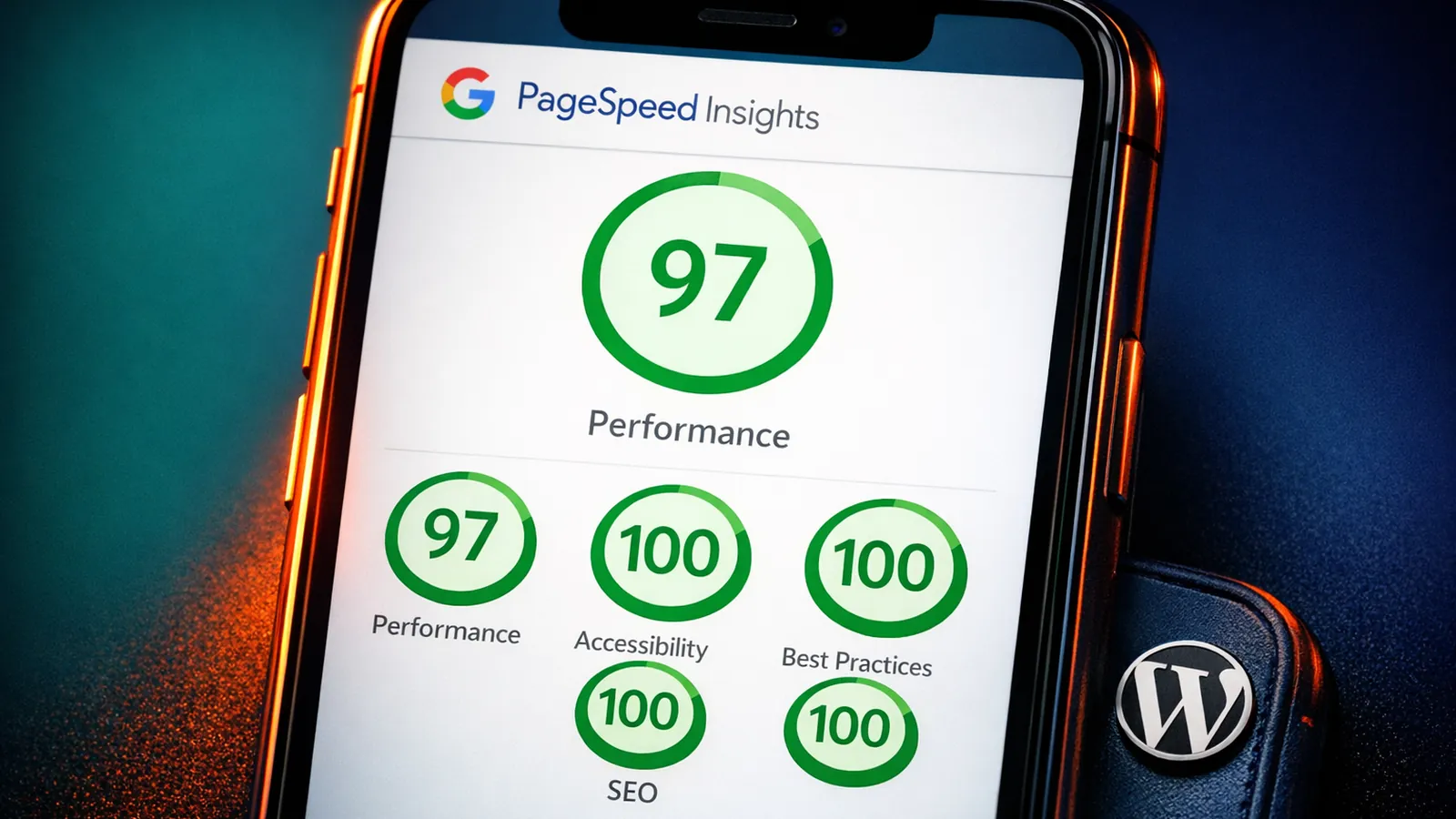
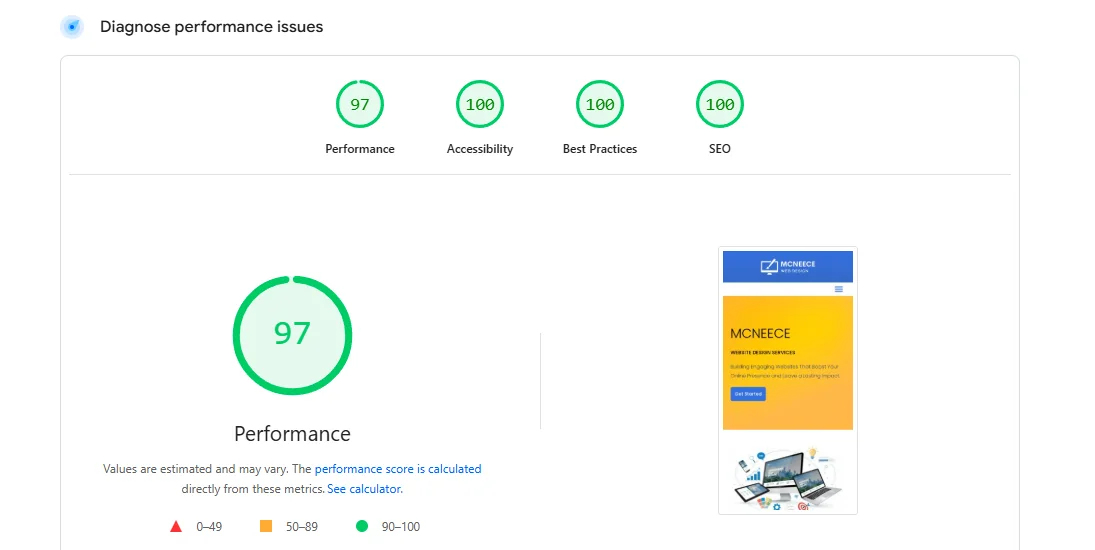
This is a real WordPress site on the 365i platform. mcneece.com, a sister site we run, fully disclosed, no client confidentiality. As of this morning, 25 April 2026, it scored 97 on mobile PageSpeed Insights, with 100/100/100 across Accessibility, Best Practices, and SEO. You can run the test yourself: pagespeed.web.dev/analysis/https-www-mcneece-com.
Before optimisation, the same site sat in the mid-50s on mobile. We'd built it on the 365i WordPress hosting platform and it was already ahead of typical shared hosting, but it wasn't fast. Going from the mid-50s to 97 didn't take a code rewrite. It didn't take a custom theme. It didn't take a developer at all. It took setting changes in the panel, a CDN already included with the hosting, and one plugin tuned thoughtfully.
That's the story of this post: how managed WordPress hosting hits 97 on mobile, layer by layer, with screenshots of the actual settings we used. If you're paying for managed WordPress hosting, or thinking about it, this is what you should expect to be getting for the money.
Three layers and a foundation
A fast WordPress site isn't one thing. It's a stack, and each level has a different job. Take any one away and the score drops, often hard.
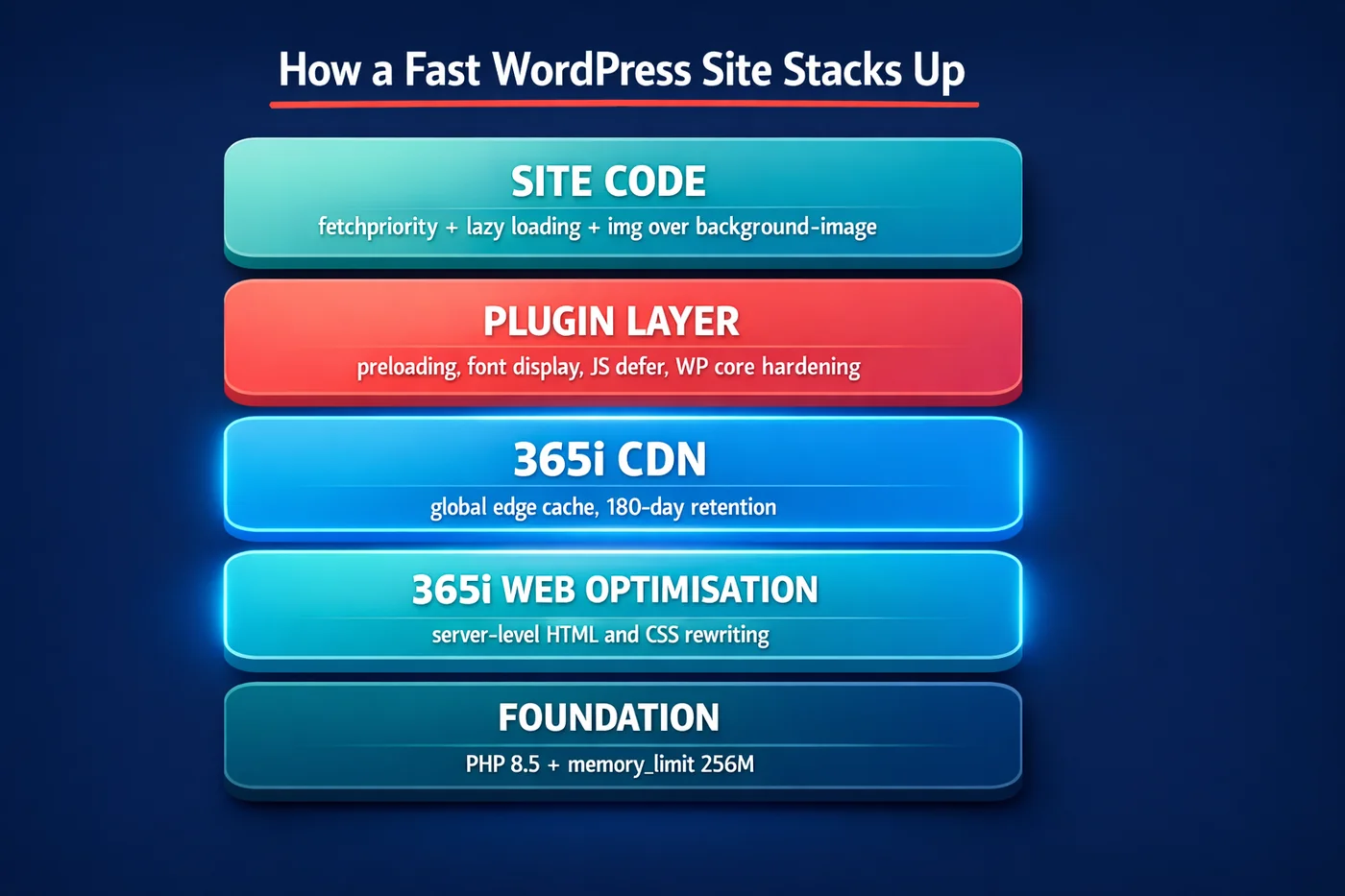
The two 365i layers in the middle of that stack, the Web Optimisation panel and the CDN, are the parts you can't easily replicate on £4.99 shared hosting. They're the platform, and they're what you're paying for on managed hosting. The plugin layer above them is the easy bit, and the one most articles in this lane lead with. The runtime foundation underneath is what most articles forget exists. The site code at the top is the rebuild decision your theme either makes or doesn't.
Walk down the stack from the bottom. Each section below is one layer, with a screenshot of the actual settings on mcneece.com.
Foundation: PHP 8.5 and a memory_limit that won't choke your site
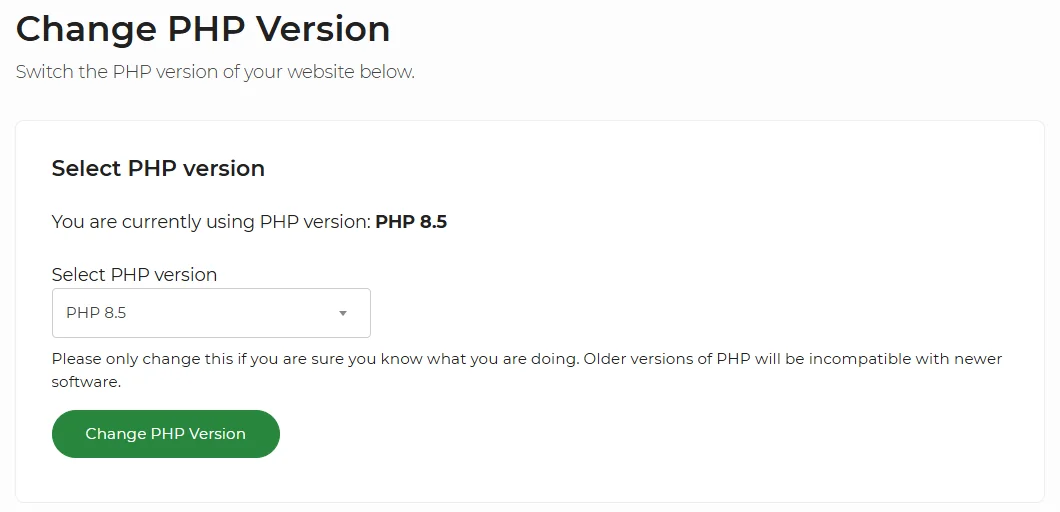
PHP 8.5 is a real number-on-the-clock difference. We tested it side-by-side against the previous version in WordPress 6.9 + PHP 8.5 Performance Tests: 23% Faster in Production. Real production sites, real workloads, 23% improvement. There's no clever hosting trick that catches up with a runtime that's a major version behind. On most budget hosts the highest available version is still 8.1 or 8.2 because the host hasn't upgraded their containers.
On 365i the version is a dropdown. Pick PHP 8.5. The site keeps running. If something breaks (rare in our experience), you can switch back in fifteen seconds. We covered the upgrade path in PHP 8.5 Just Landed: 3 WordPress Speed Boosts You Need in 2025, and the answer for nearly every WordPress 6.9+ site has been the same: just upgrade.
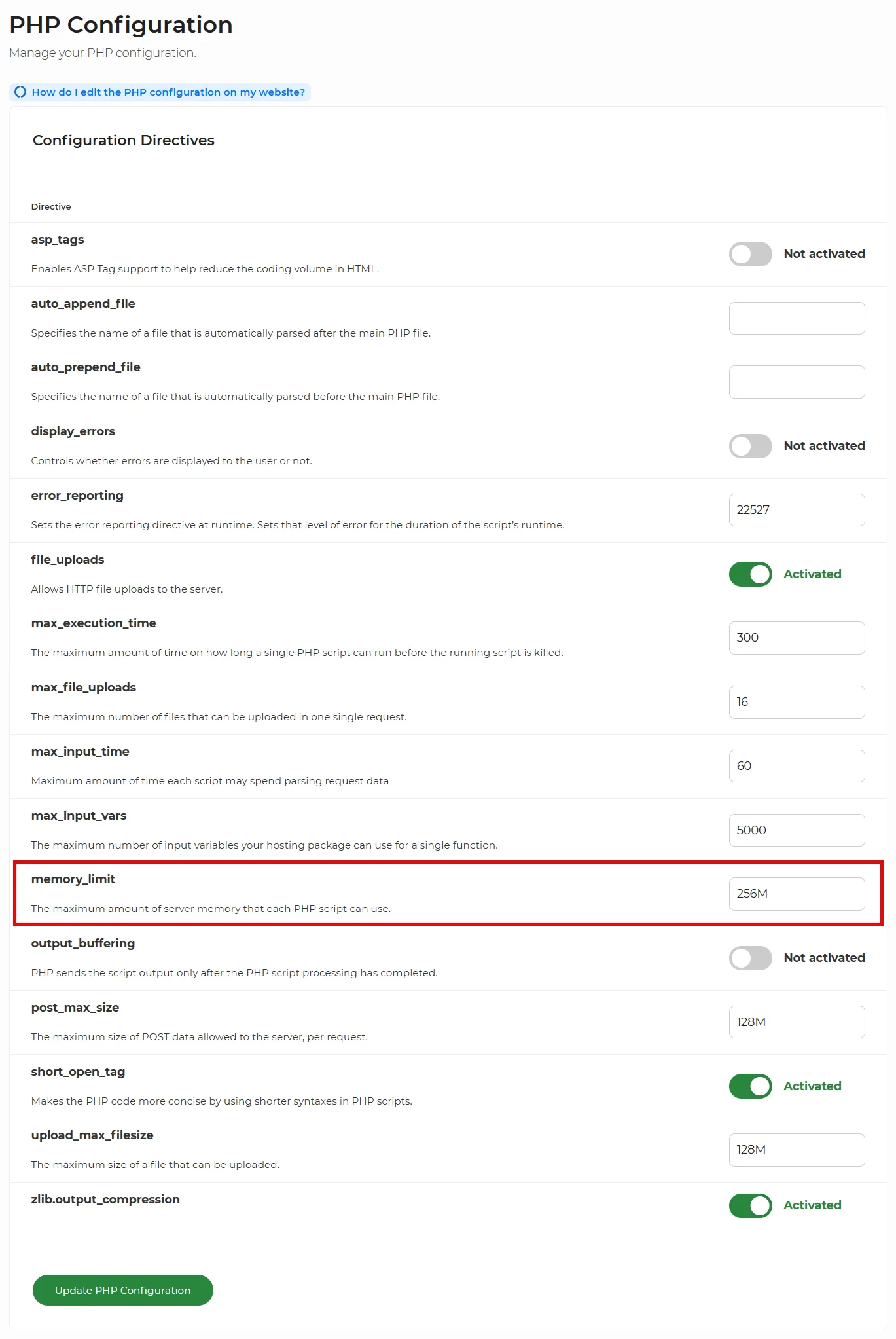
The other half of the foundation is memory. mcneece.com runs with memory_limit set to 256M, up from the default 128M. That's the single setting that prevents the "Allowed memory size of 134217728 bytes exhausted" white-screen-of-death you'll have seen on any busy WooCommerce store, any site with a heavy page builder, or any site running half a dozen plugins that each load aggressively.
On budget shared hosting, this is often capped at 64M or 128M with no way for you to change it. You raise a ticket. Maybe you get a bump, maybe you don't. On 365i, it's a number field in the panel. You change it, save, done. 256M is enough headroom for nearly any small-to-medium WordPress site, including WooCommerce stores with a few hundred SKUs.
Two screens. Two clicks. No SSH, no php.ini, no support ticket. That's the foundation done.
Layer 1: The Web Optimisation panel
This is where the platform earns the "managed" in "managed WordPress hosting."
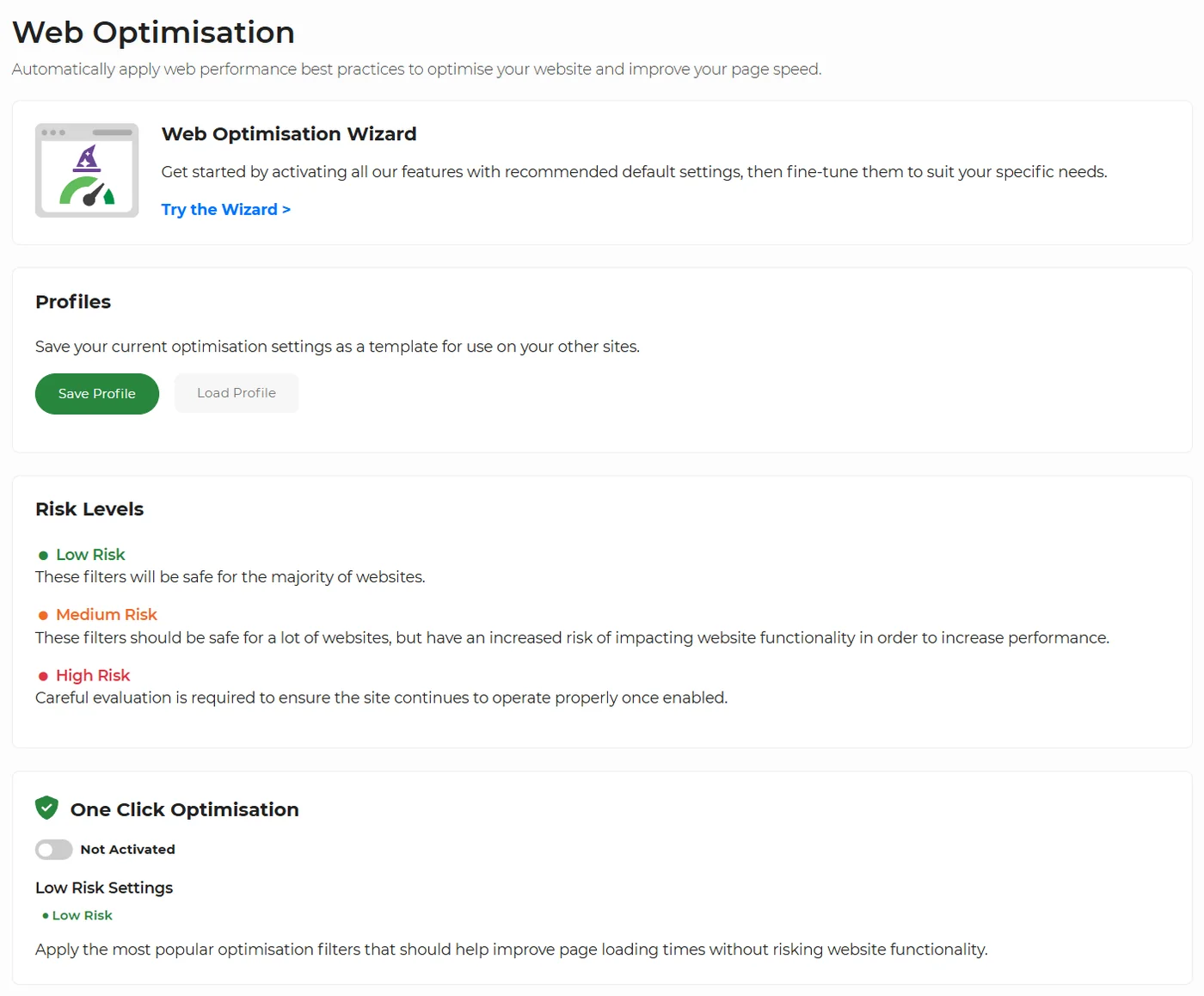
The panel is a server-level rewrite engine. It takes the HTML, CSS, and JavaScript your site produces and rewrites it before delivery. It's not a plugin running inside WordPress, not a service that runs after the page has rendered. This happens on the way out, between PHP and the visitor's browser. Because it's at the server, it works for any theme, any plugin, any content type, including pages that bypass WordPress page caching entirely.
Three things make this useful on a real production site:
- The toggles are risk-graded. Low Risk, Medium Risk, High Risk. The panel tells you up-front which optimisations are safe across the majority of themes and which can break specific markup patterns.
- There's a wizard that turns on sensible defaults if you don't want to tune individual toggles.
- Everything is reversible. Toggle off, save, back to where you were.
One thing worth getting straight up front: tuning this panel is a negotiation with the plugin layer above it. When Perfmatters is doing the same job (deferring JavaScript, removing unused CSS, lazy-loading images), the platform's equivalent toggle generally needs to be OFF, because two layers fighting over the same job is how you break things. The settings below are what we ended up with after working through which layer should own which job. They aren't the wizard defaults; they're a coordinated set.
Now the actual settings on mcneece.com.
HTML: 11 of 11 active

Every HTML toggle is on. They're all low-risk, they all save bytes off the wire, and they have no real downside. Trim Whitespace. Combine Heads. Convert Meta Tags. Pre-Resolve DNS. Remove Comments. Trim URLs. A document that arrives at the browser smaller, with DNS already pre-resolved for third-party domains, is a document the browser can process faster. There's no judgement call here.
CSS: 6 of 8 active
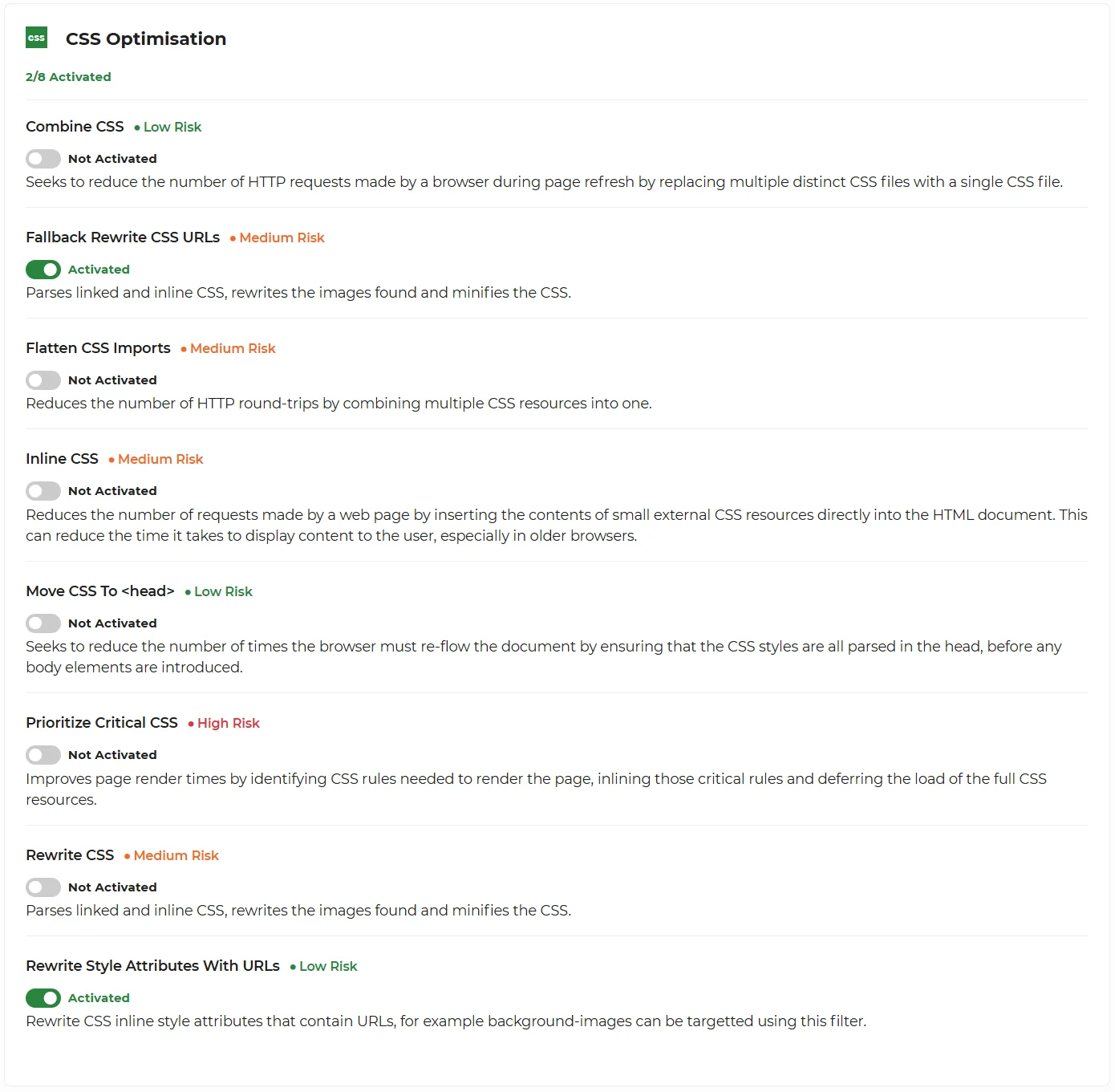
This one needs a closer look. We've turned on Combine CSS, Move CSS to head, Prioritize Critical CSS, Fallback Rewrite CSS URLs, and Rewrite Style Attributes With URLs. We've left off Inline CSS, Rewrite CSS, and Flatten CSS Imports.
The big "why" here is the negotiation with Perfmatters. Inline CSS and Rewrite CSS overlap directly with Perfmatters' Remove Unused CSS feature, which is doing the heavier-lifting version of the same job. Perfmatters tracks which CSS rules are actually used on each page and inlines only those, with the rest delayed until after the initial paint. The platform's Inline CSS and Rewrite CSS would do a coarser version site-wide. Run them together and you get two rewriters fighting over the same stylesheet on every request, which produces inconsistent output and occasional layout breakage. We turned them off so Perfmatters could own that job cleanly.
Flatten CSS Imports is a different decision: it rewrites stylesheet inclusion order, which can change cascade behaviour in subtle ways that only show up on specific pages. That one is a pure risk call, not a coordination call. The marginal byte saving wasn't worth the chance of breaking a layout we haven't seen yet.
The five toggles that are on (Combine CSS, Move CSS to head, Prioritize Critical CSS, Fallback Rewrite CSS URLs, Rewrite Style Attributes With URLs) all do macro-level work that Perfmatters doesn't touch. Combining stylesheets reduces HTTP requests. Moving CSS to head prevents render-blocking lower in the document. The platform handles structure; Perfmatters handles which rules survive.
This kind of decision isn't in any "WordPress speed guide" article, because most of them treat optimisation as a binary: turn it on or don't. The reality is each toggle has a cost and a benefit, and on a real production site running a tuning plugin, the right answer for half of them is "let the plugin handle it."
JavaScript: 0 of 7 active

All seven JavaScript toggles are off, and the reason is the same one that drove half the CSS decisions: Perfmatters is doing the JavaScript work at the plugin layer with finer control, and the two layers can't both own it without fighting.
The specific conflicts:
- Defer JavaScript. Perfmatters has this on, with two important refinements: it defers inline scripts as well as external scripts, and it lets us exclude jQuery from deferral. jQuery has to remain available immediately for some Elementor widgets to render correctly. Turn the platform's Defer JavaScript on as well and you get either two deferral mechanisms fighting over execution order, or you get jQuery deferred at platform level (because the platform doesn't know about Perfmatters' exclusion list), which breaks the widgets.
- Combine JavaScript. The platform bundles all scripts into one file. That defeats Perfmatters' per-script controls entirely: you can't selectively exclude jQuery from a bundle that's already been combined. As soon as you turn this on, the careful jQuery exclusion stops working.
- Minify JavaScript. Perfmatters has its own JS minification (currently off because most modern themes ship pre-minified, but it's available if needed). Running both rewriters at once introduces edge-case parsing differences nobody wants to debug.
- Inline JavaScript and Move CSS Above Scripts. Both interact with Perfmatters' deferral logic in ways that change script execution order unpredictably.
The clean answer is to let one layer own the JavaScript pipeline. We picked Perfmatters for the per-script control, which means platform JS toggles all stay off. If you didn't have a tuning plugin installed, the platform's wizard defaults would be perfectly reasonable: Defer JavaScript on, Minify JavaScript on, the rest off. That setup gets most sites comfortably into the 80s on mobile.
Images: 12 of 14 active (the layer that does the most for mobile LCP)
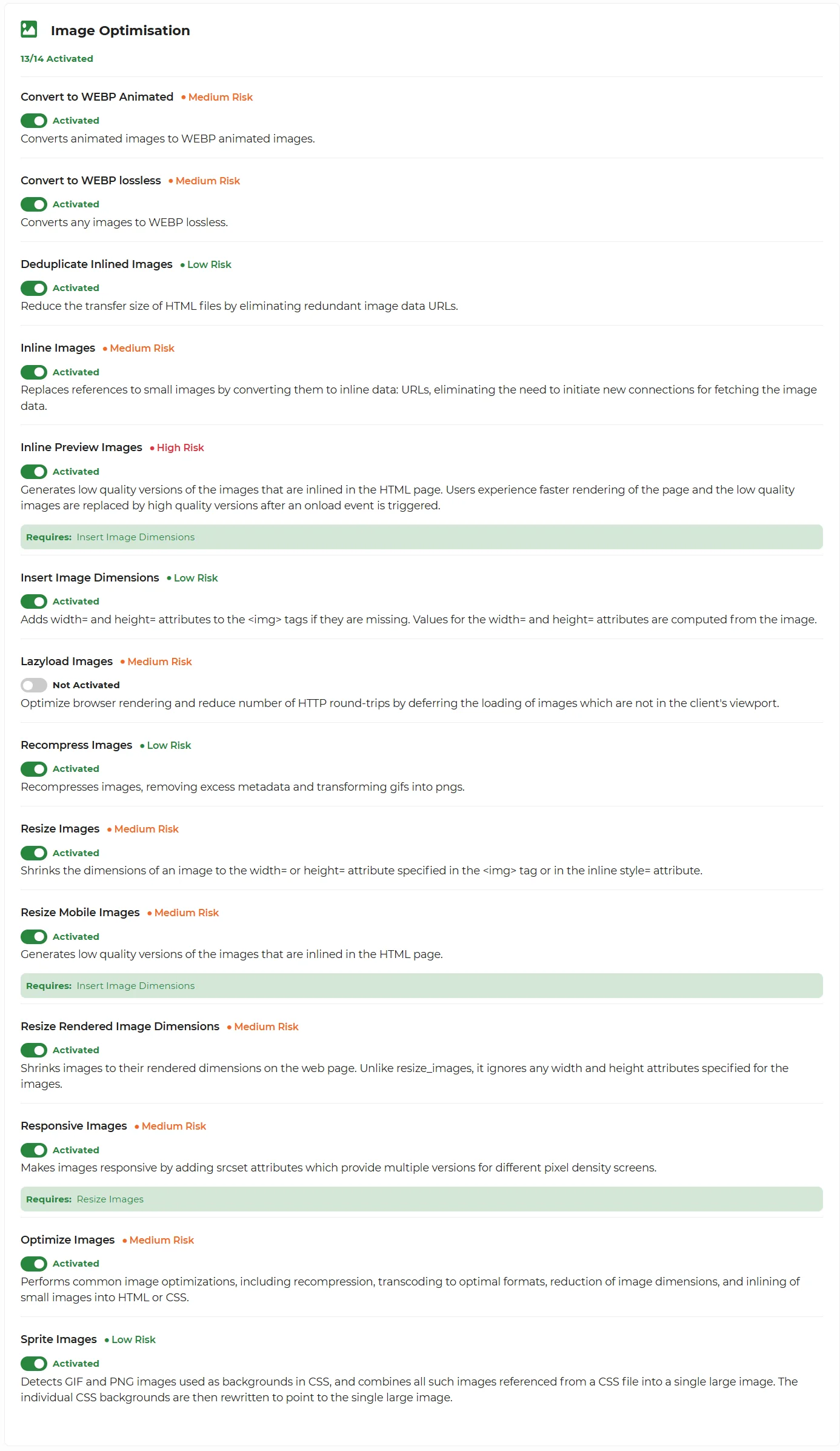
Images are nearly always the largest content paint on the page, so this is the panel that does the most for mobile PageSpeed. Unlike the JS panel, the platform and Perfmatters share the image work cleanly: the platform handles format conversion, compression, resizing, and responsive markup at delivery time; Perfmatters handles preloading the LCP image with fetchpriority="high" and the JavaScript-based lazy-load behaviour for below-fold elements. The two layers compose without fighting, so most platform image toggles can stay on. Twelve of the fourteen are. The two off are the higher-risk ones that interact with theme-specific markup.
What's running on every page request:
- Convert to WebP (lossless and animated). Images served as JPEG or PNG by the original WordPress upload get rewritten to WebP on the way out. WebP is roughly 25-35% smaller than the equivalent JPEG at the same visible quality. The original files don't change; the rewriter substitutes WebP where the browser supports it.
- Lazyload Images. Below-fold images use
loading="lazy"automatically. - Insert Image Dimensions. Missing
widthandheightattributes get computed and inserted, which prevents Cumulative Layout Shift (one of the three Core Web Vitals). - Resize Mobile Images. Images are resized down to mobile-appropriate dimensions before delivery, so a phone doesn't download a 2,000-pixel-wide image to display it at 400 pixels.
- Responsive Images. Adds
srcsetattributes so the browser picks the right size for the device. - Recompress + Optimize Images. Strips metadata, transcodes optimal formats, reduces dimensions where possible, applies quality-aware compression.
- Sprite Images. Small images used as CSS backgrounds get combined into a single sprite, which is one round trip instead of many.
The two off:
- Inline Preview Images (High Risk). Off. This generates low-quality preview thumbnails and inlines them as base64 in the HTML, swapping them for the real image when the page loads. The trade-off is initial HTML weight against perceived speed. On most themes the swap reads as a flicker. We've kept it off; the High Risk badge is honest about why.
- Resize Rendered Image Dimensions (Medium Risk). Off. This rewrites images to their actually-rendered dimensions on the page, ignoring the explicit width and height in markup. It can save bytes, but on themes that change image sizes responsively it sometimes resizes to the wrong target. Off, for safety.
Twelve toggles, lots of judgement, real LCP impact. The featured image on a 365i WordPress site arrives smaller, in the right format, sized for the device, and lazy-loaded if it's below the fold. None of that requires plugin code or theme changes. It's the rewriter doing the work.
For the full inventory: see every toggle in detail on the HTML, CSS, JavaScript, and Image tabs of the Web Optimisations page. Same wording, same risk levels, same dependencies as the actual panel.
Layer 2: CDN edge caching
The 365i CDN is included with WordPress hosting at every tier. There's no extra plugin, no Cloudflare setup, no DNS reconfiguration. The CDN is part of the platform, and the controls are in the same panel.
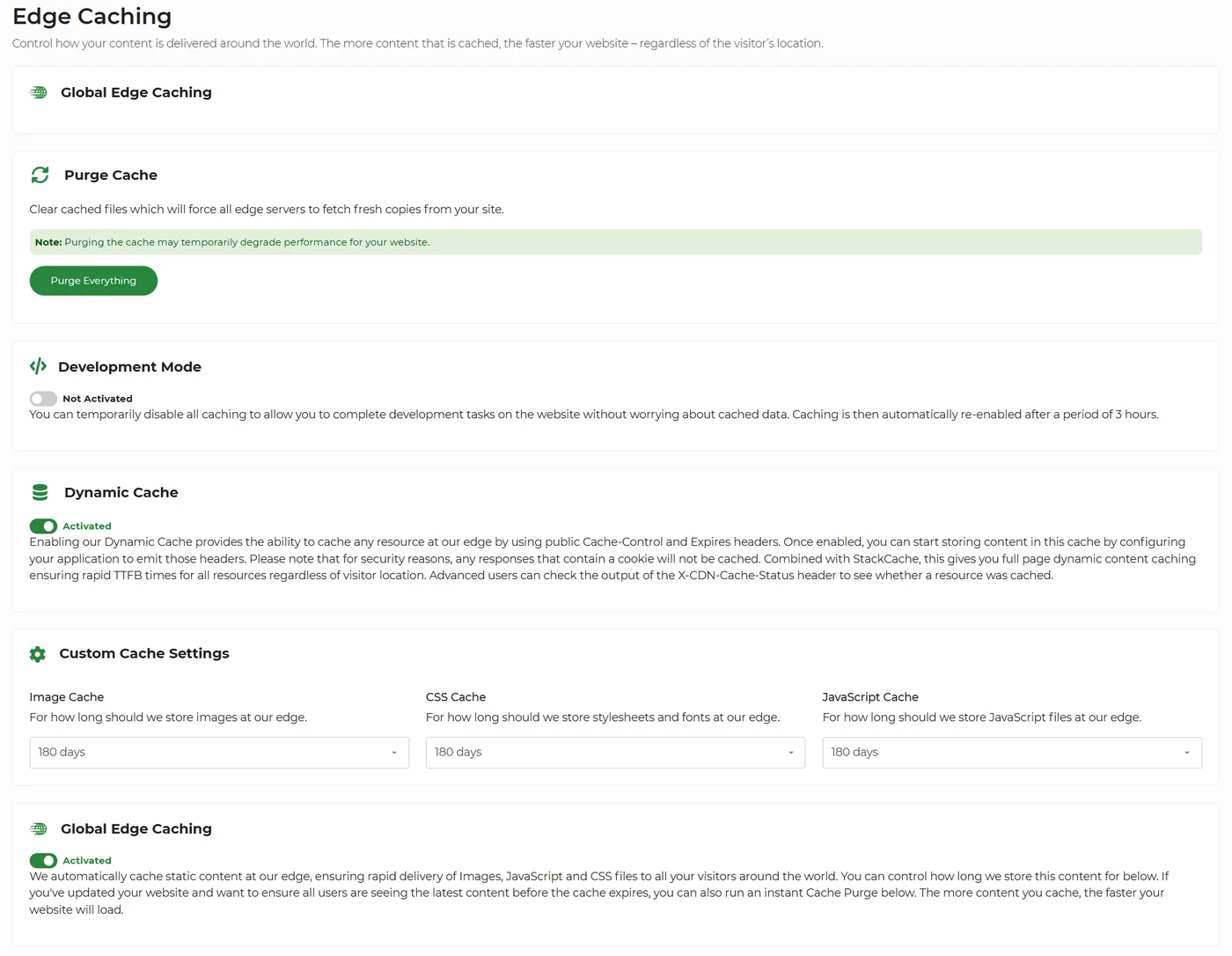
Three things matter on this panel.
Global Edge Caching: ON. Static assets (images, CSS, JavaScript) are served from the edge node nearest the visitor. That cuts the round-trip time, which is the single biggest factor in mobile load speed. Mobile networks are higher-latency than desktop and round trips dominate the time budget.
Dynamic Cache: ON. This is the bit that surprises people about how the 365i CDN handles WordPress. It honours Cache-Control and Expires headers, which means a logged-in user gets fresh HTML, an anonymous user gets cached HTML, and WordPress core handles the headers correctly. You don't need to manually configure cookie-based bypass rules for cart, checkout, or admin pages.
Image, CSS, JS retention: 180 days. This is long. Most CDNs default to 24 hours or 7 days. 180 days keeps the hit rate high even on lower-traffic pages, which is most of the long tail of any real WordPress site. The retention works because we use versioned URLs (?v=... query strings) on assets that change. New version, new URL, instant cache miss for that file only. No manual purge needed for asset updates.
The 365i CDN is documented in detail at /cdn/. The point for this article is that it sits in the same panel as the optimisation settings, ships with every plan, and doesn't require a separate signup or a fourth subscription.
Layer 3: The plugin layer
Many plugins do this. We use Perfmatters on mcneece.com because it gives us granular control over preloading, font display, fetch priority, JavaScript deferral, and removing unused WordPress core features. WP Rocket, FlyingPress, Hummingbird, Autoptimize, and NitroPack would also work. The plugin is interchangeable. The platform underneath isn't.
What the plugin layer is doing on mcneece.com, specifically:
- Preloads the LCP hero image with
fetchpriority="high". The first image the visitor sees is the one we want to arrive first. We don't want the browser deciding for itself which of forty images on the page to grab first. - Preloads nine specific Poppins font weights as
woff2. Above-fold text appears immediately, no flash of invisible text. - Defers JavaScript, with inline scripts included, but jQuery deliberately excluded. Some Elementor widgets need jQuery available immediately. Defer it and the page breaks. Disclosing this because it's a real decision we made for a real reason.
- Removes unused CSS using the inline-and-delay strategy. The CSS rules that aren't used on the current page don't ship with the current page.
- Hosts Google Fonts locally. No third-party Google request when the page loads. Privacy and speed both win.
- Limits font subsets to Latin only. mcneece.com doesn't need Cyrillic, Greek, or Arabic font data. Cutting them saves bytes.
- Speculative Loading set to Prerender, Eagerness Eager. When a visitor hovers a link in the menu, the next page is pre-rendered in the background. Click feels instant. WordPress 6.8+ feature, very few sites enable it.
- Disables WordPress fluff that adds bytes: emojis, Dashicons, XML-RPC, jQuery Migrate, RSS feeds, REST API for logged-out users, comments scripts (this is McNeece, no comments), and Global Styles.
That last item is worth pausing on. WordPress core ships with a lot of features most sites don't use. Each one costs bytes on every page load. Disabling the ones you don't use is one of the cleanest wins you can make. Perfmatters exposes them as a checklist. Other plugins do too. The principle matters more than the brand.
One more thing that's easy to miss: the plugin layer and the platform layer aren't independent. Where Perfmatters owns a job (Defer JavaScript, Remove Unused CSS), the corresponding platform toggle has to be off to avoid two rewriters fighting over the same output. Where the platform owns a job (HTML transfer optimisation, server-level CSS combining, image format conversion at delivery), Perfmatters has nothing to add. The settings on both ends are a coordinated set, not two independent setups stacked on top of each other.
That said, Layer 3 is still the most replaceable layer. WP Rocket, FlyingPress, NitroPack, Hummingbird, and Autoptimize would each let you arrive at a similar coordinated configuration. The platform layers underneath are what your hosting provider does or doesn't do for you.
The site-code decisions the platform can't make for you
The platform handles macro rewriting. The CDN handles distribution. The plugin handles WordPress-specific quirks. None of them can fix a theme that's making bad markup decisions.
The single biggest one is using background-image for hero and feature visuals instead of <img>.
When we rebuilt 365i.co.uk last year, we made this rule explicit: every hero photo, every feature image, every content image is an <img> element. Background images are reserved for decorative shapes, gradients, and CSS-only design elements that aren't part of the content. mcneece.com follows the same rule, which you can see indirectly in the Perfmatters Lazy Loading panel: the "CSS Background Images" toggle is off, because the site doesn't have any to lazy-load.
The reason: <img> lets you tell the browser two things that background-image cannot.
<!-- Above the fold -->
<img src="hero.webp" alt="..."
     width="1600" height="900"
     fetchpriority="high">

<!-- Below the fold -->
<img src="feature.webp" alt="..."
     width="800" height="600"
     loading="lazy" decoding="async">
The fetchpriority="high" attribute tells the browser this is the most important image on the page. Fetch it first. That's a direct LCP win. Browsers without explicit priority hints have to guess which image matters most, and on a busy page they often guess wrong.
The loading="lazy" attribute tells the browser not to fetch this image until it's about to scroll into view. That's the bandwidth saver. On a long page with twenty images below the fold, lazy loading is the difference between a 3 MB initial payload and a 600 KB initial payload.
Background images get neither attribute. The browser fetches them when the CSS is parsed, with no priority signal and no native lazy-loading. You can background-image: url(...) in the world's most beautifully written CSS and the browser still won't know whether that image is critical or decorative.
"Boosting the priority of the LCP image by specifying
Addy Osmani, Leena Sohoni, Patrick Meenan and Barry Pollard (Google Chrome), Optimizing resource loading with the Fetch Priority API, web.dev.fetchpriority="high"on the image element, causing LCP to happen sooner."
That same article reports a real-world test on Google Flights where adding fetchpriority="high" to the LCP image dropped LCP from 2.6 seconds to 1.9 seconds. Without the hint, the browser was guessing. It's not making informed choices about which image to fetch first; it's running a heuristic that's right most of the time and wrong on the cases that matter (your LCP image). Setting fetchpriority turns the guess into a fact. Before we made this rule on our own builds, hero images loaded after navigation icons and footer-area images on slow connections. After, the hero is always first.
The cost of using <img> over background-image is layout work. You can't just set background-position and call it done; you write actual layout code around the image. The benefit is direct control over fetch priority and lazy loading. For sites that care about Core Web Vitals on mobile, the trade-off is one-way.
This is the layer that doesn't ship with the hosting plan. You build it yourself, or you don't. We've built it on every site we ship under the 365i brand. Most themes don't, which is part of why most WordPress sites don't hit 95+ on mobile.
One edge case worth flagging: font caching in .htaccess
There's one more thing on mcneece.com that's worth disclosing because it's a real per-site decision we made, but you almost certainly don't need to copy it.
The 365i hosting platform sets sensible cache headers at the vhost level for most file types. On the plan mcneece.com is on, the default mod_expires rules don't cover font MIME types. The 365i CDN caches fonts at the edge for 180 days, but the visitor's browser was getting weak cache hints from the origin and re-checking fonts more often than it needed to. The fix was four lines in .htaccess:
<IfModule mod_expires.c>
ExpiresActive On
ExpiresByType font/woff2 "access plus 180 days"
ExpiresByType font/woff "access plus 180 days"
ExpiresByType font/ttf "access plus 180 days"
ExpiresByType font/otf "access plus 180 days"
</IfModule>
That tells the visitor's browser to keep cached font files for 180 days, which matches what the edge CDN is already doing. Repeat visitors don't re-download fonts. Single-page sessions don't notice it. Returning visitors do.
If you're on a 365i plan where the vhost default already covers font MIME types, you don't need this. If your repeat-visit Lighthouse "Serve static assets with an efficient cache policy" audit is flagging fonts, this is the fix. The free 1-to-1 assistance can tell you whether your specific plan needs it. The point of mentioning this isn't that everyone has to edit .htaccess; it's that even on a managed platform there are occasional per-site adjustments worth making, and they're available to you when you need them.
Why the layers compose
Each layer covers what the others can't.
- Foundation is the runtime. There's no point optimising delivery if PHP is starved for memory or running on a version that's two majors behind.
- Layer 1 (Web Optimisation panel) is macro-level rewriting. HTML transfer size, CSS prioritisation, DNS pre-resolution. None of it requires the application to know anything.
- Layer 2 (CDN) is geographic distribution. Edge nodes serve assets from physically close servers, which cuts mobile network round-trips.
- Layer 3 (plugin) is WordPress-specific. Preloading the LCP image, hosting fonts locally, disabling core features the site doesn't use.
- Site code is the front-of-house decision.
<img>over background-image, fetchpriority, lazy loading, semantic markup.
Take any one out and you can feel it. Without the foundation, the rest of the stack runs on a slower runtime than it needs. Without Layer 1, the bytes that arrive at the browser are larger than they need to be. Without Layer 2, mobile users on 4G eat the round trips. Without Layer 3, WordPress's defaults add weight that doesn't help anyone. Without site-code decisions, you're asking the browser to guess which image matters.
97 on mobile is what happens when all five compose. Any one missing, the score drops to the high 80s or low 90s. Two missing, you're back in the 70s. We've watched this play out across enough client sites that the pattern is reliable.
The verifiable result
mcneece.com on the 365i platform, this morning, mobile PageSpeed Insights:
- Performance: 97
- Accessibility: 100
- Best Practices: 100
- SEO: 100
Mobile, not desktop. Mobile is the harder of the two. PageSpeed Insights tests mobile on a slow 4G connection at a throttled CPU clock; desktop tests use a fast cable connection and full CPU. Desktop scores often hit 100 on the same site without trying. Mobile 97 is the number that matters, because mobile is what most of your visitors are actually using.
"Each of the Core Web Vitals represents a distinct facet of the user experience, is measurable in the field, and reflects the real-world experience of a critical user-centric outcome."
Philip Walton, Software Engineer at Google, Web Vitals, web.dev.
That phrasing is exactly why a 97 on a real WordPress site beats a "we hit 100 in a synthetic test" claim. The point Walton lands on is that Core Web Vitals are field metrics: measurable on real users on real devices over real networks, not laboratory benchmarks. The PageSpeed Insights mobile score is a tighter approximation of what an actual mobile visitor sees, which is what you're optimising for.
Run it yourself: pagespeed.web.dev/analysis/https-www-mcneece-com. Today, tomorrow, next month. The score moves around a couple of points depending on the time of day and the test edge node, but the band sits firmly in the high 90s on mobile.
What this means if you're shopping for WordPress hosting
A fast WordPress site isn't a plugin problem. It's a platform problem. Plugins are a tactic; the platform is the strategy. You can install a plugin tomorrow on cheap shared hosting and you'll see a few points of improvement, maybe ten. You won't see fifty.
What gets you to the high 90s is the platform underneath: a current PHP runtime, enough memory, server-level rewriting that knows what to do with HTML and CSS, an edge CDN that serves assets close to the visitor, and a panel that makes all of this configurable in two clicks rather than a support ticket.
That's what 365i WordPress Hosting is. Plans start at £5.99/month. Every tier includes the optimisation panel, every tier includes the CDN, every tier runs on PHP 8.5 and unlimited LVE resources on the autoscaling cloud platform. The Turbo plan adds 4.20 GHz compute and CDN pre-caching for sites that need the absolute top of the range. The Agency plan rolls these settings out across unlimited sites for freelancers and small studios.
Tuning the optimisation panel is trial and error. Every theme and plugin combination is different, so there's no single set of toggles that fits every site. The screenshots above show what worked on mcneece.com, and our Web Optimisations page documents every toggle in detail. Free 1-to-1 WordPress assistance is included on every plan for general questions about hosting, migration, and starter guidance, but per-site hand-tuning of the panel toggles is a paid consultancy job rather than free hosting support.
See the platform in action
Every WordPress hosting plan ships with the Web Optimisation panel, the 365i CDN with 180-day edge caching, PHP 8.5, and unlimited LVE resources on the autoscaling cloud platform. Run the Wizard, enable Low Risk, measure, iterate. Plans from £5.99/month.
See WordPress HostingWhere this advice breaks
Not every WordPress site will hit 97 by moving to 365i. The result depends on a handful of things outside the hosting platform's control:
- Theme bloat. Page builders ship with a lot of decorative blocks. Some themes load 600 KB of inline CSS for the homepage. The optimisation panel can trim some of that, but it can't refactor the theme.
- Content type. Image-heavy gallery sites and video-embed-heavy sites have a higher LCP ceiling. You can hit 90+, but 97 might require image format changes (AVIF over WebP, smarter
srcset, eager-loaded poster frames for embedded video). - Plugin ecosystem. Some popular plugins block render no matter what you do. Live chat widgets, tracking pixels with synchronous loaders, certain accessibility overlays. You can defer some of them. You can't always defer them safely.
- Tuning effort. The wizard gets you most of the way. Hitting 97 specifically takes deliberate choices about which medium-risk toggles to leave off, and that's not something a wizard can decide for your particular theme.
What 365i gives you is the highest reasonable starting point. You can take any WordPress site, move it to managed hosting on the 365i platform, and get faster than budget shared hosting in every case we've seen. Whether you hit 97 specifically depends on the work you're willing to put in beyond the move. If you go further and rebuild from scratch, the same platform can host a perfect 100 across all four pillars, as we documented on a real client in 100 mobile PageSpeed at launch: the Lockerfella case study.
That's honest. It's also the part most articles in this lane skip, because it doesn't fit the "switch and it'll be fast" sales line. If your WordPress site is slow now, the diagnosis comes first. Fixing the theme might matter more than the host.
FAQ
Seven questions people actually ask when they read this.
How can I improve my WordPress PageSpeed score?
Start with the foundation, then work upward. Get on PHP 8.4 or 8.5. Make sure your memory_limit is at least 256M. Then turn on platform-level HTML optimisation and CDN edge caching. Finally, install one well-tuned plugin (Perfmatters, WP Rocket, FlyingPress) for WordPress-specific tweaks. Doing it in this order means each layer's gains compound. Doing it in reverse (plugin first, runtime last) is why so many speed-fix attempts plateau in the 70s.
Does managed WordPress hosting actually affect PageSpeed?
Yes, and the difference is bigger than most people expect. Server-level caching alone drops Time to First Byte from the 800 to 1,400 ms range typical of shared hosting to the 100 to 250 ms range typical of managed. That single number often pushes Largest Contentful Paint from "Poor" to "Good" without any other change. The CDN, the optimisation panel, and the runtime version compound on top.
Why is my WordPress mobile PageSpeed score lower than desktop?
PageSpeed Insights tests mobile on a slow 4G connection with a throttled CPU. Desktop tests use a fast cable connection and full CPU. Mobile is the stricter test by design, because mobile is the harder real-world environment. A 30-point gap between mobile and desktop is normal. Closing it requires server-side delivery (CDN edge caching), preloading the LCP image, and eliminating render-blocking JavaScript.
What's a good PageSpeed score for WordPress?
90+ on mobile is the goal. 95+ is achievable with a tuned platform. 100 is rare and usually requires removing things you actually want. The four-pillar score (Performance, Accessibility, Best Practices, SEO) matters more than chasing 100 on Performance alone. A site that hits 95/100/100/100 is in better shape overall than one that hits 100/85/90/95, and the latter will struggle in front of human quality raters.
Will my existing site automatically get 97 on PageSpeed when I move to 365i?
Probably not automatically, but you'll see a step change. The exact number depends on your theme, your plugins, your image sizes, and how many of the platform settings you tune. Out of the box with the optimisation wizard on, most sites we've migrated land in the 85-92 range on mobile within an hour of moving over. Pushing from there to the high 90s is trial and error against your specific theme and plugin set, with the Web Optimisations page as the reference for what each toggle does.
Why is JavaScript optimisation OFF on mcneece.com if it's a speed feature?
Because the platform's JS toggles are blunt: defer everything, combine everything, minify everything. The plugin layer (Perfmatters in our case) handles JavaScript at finer granularity, with per-script controls and exclusions for jQuery and Elementor widgets that need it. We let the plugin do its job and turn the platform JS toggles off so they don't fight each other. On simpler themes the platform toggles work fine; on widget-heavy themes the plugin's per-script controls win.
Does this work for WooCommerce?
Yes, with caveats. The Dynamic Cache setting on the CDN handles cart and checkout pages correctly. Those are bypassed automatically because they ship with Cache-Control: no-store headers. Catalogue and product pages benefit from edge caching. The plugin layer is the same set of toolkits, but you'll want to be more careful about JavaScript deferral on stores using AJAX cart or live filtering. The JavaScript tab on the Web Optimisations page documents exactly what each JS toggle does so you can decide which to leave off.
Sources
Performance and Core Web Vitals
- Optimizing resource loading with the Fetch Priority API
- Web Vitals
- PageSpeed Insights: mcneece.com (mobile)
Tools mentioned
Related reading on the 365i property
Published: · Last reviewed: · Written by: Mark McNeece, Founder & Managing Director, 365i
Editorially reviewed by: Mark McNeece on · Our editorial standards