Half your visitors will leave if your site takes more than three seconds to load. Not some of them. Half. Google's own research puts the number at 53% on mobile, and that's been consistent for years.
For a UK small business spending money on Google Ads, SEO, or social media to drive traffic, a slow WordPress site is a leak in the bucket. You're paying to get people through the door, then watching them walk out before the page finishes rendering.
This guide covers the full picture: what actually makes WordPress fast, how Google measures it, and the practical steps you can take right now. Some of those steps are free. Some depend on your hosting. All of them are within reach for a small business without a dedicated IT team.
Why Speed Kills Sales (and Rankings)
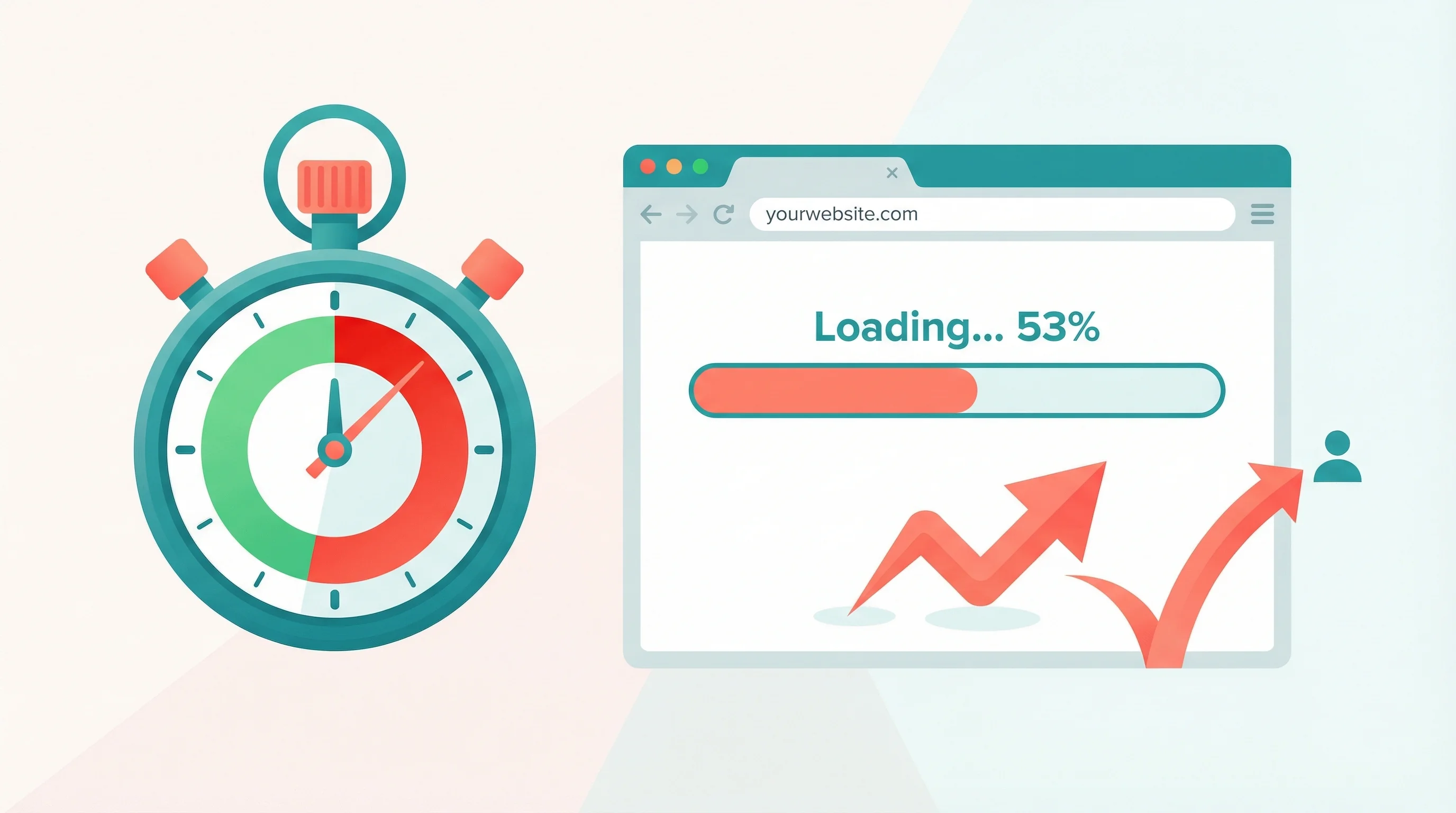
The numbers are brutal. When page load time goes from one second to three seconds, the probability of a visitor bouncing increases by 32%. From one to five seconds, it jumps 90%. These aren't theoretical projections. They come from Google's analysis of millions of mobile page loads.
Speed also affects how much money each visitor is worth. Research across multiple e-commerce platforms shows that a 100-millisecond improvement in page responsiveness can lift conversion rates by roughly 1%. That's one tenth of a second. You can't even blink that fast, but your visitors' wallets notice. We explore why hosting speed is the conversion differentiator that gets overlooked in favour of flashier topics.
Then there's the ranking signal. Google uses Core Web Vitals as a ranking factor. Sites that pass all three metrics get a small but real advantage in search results. Sites that fail them get pushed down, particularly on mobile where over 60% of UK searches now happen.
Put it this way: speed isn't a technical problem for your developer to worry about. It's a revenue problem for the business owner to fix.
Core Web Vitals in Plain English
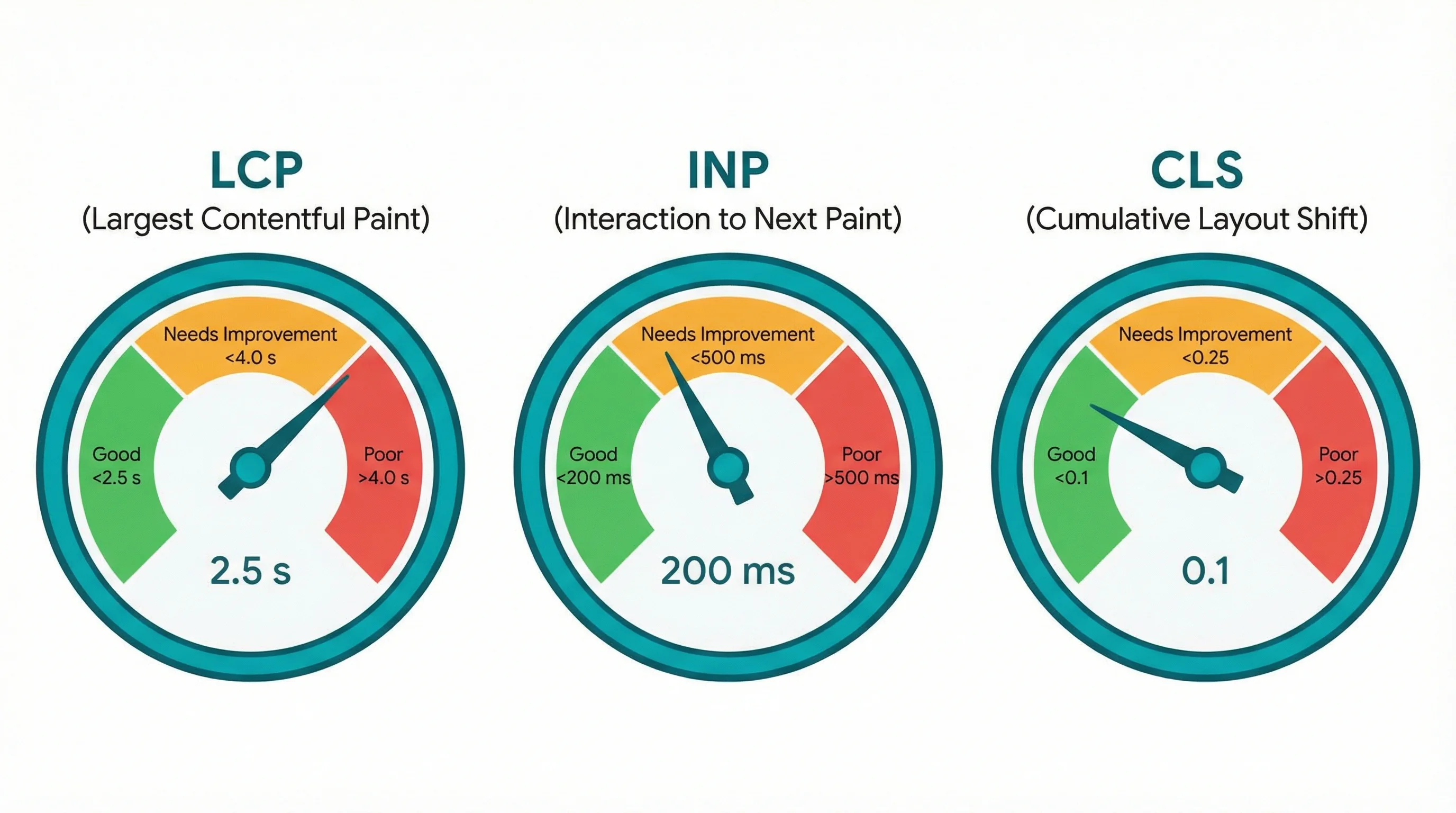
Google boils website performance down to three numbers. Get all three right and your site passes. Miss any one and it fails.
Largest Contentful Paint (LCP) measures how long it takes for the biggest visible element to appear on screen. Usually that's a hero image or a large heading. Google wants this under 2.5 seconds. Anything over 4 seconds is marked poor.
Interaction to Next Paint (INP) replaced First Input Delay in March 2024. It measures how quickly your site responds when someone taps a button, opens a menu, or fills in a form. The target is under 200 milliseconds. This is the one most WordPress sites struggle with because heavy JavaScript blocks the browser's main thread.
Cumulative Layout Shift (CLS) tracks visual stability. Ever tried to tap a link on your phone, only for the page to jump and you hit the wrong thing? That's layout shift. Google wants a score below 0.1. Images without width and height attributes are the most common cause.
Harry Roberts, the UK-based web performance consultant behind CSS Wizardry, puts it well: "Core Web Vitals have become the de facto suite of metrics to use." They're free to measure, standardised across the industry, and directly tied to search rankings. You can check yours right now at PageSpeed Insights.
Here's my take on it after more than 20 years in hosting: most business owners I talk to have never heard of INP. They know their site "feels slow" but can't pin down why. Nine times out of ten, it's JavaScript on the main thread, usually from a heavy theme, too many tracking scripts, or a bloated page builder. The fix starts at the server level, not the plugin level.
The Three Layers of WordPress Speed
Think of WordPress speed like a three-layer cake. The bottom layer is your server. The middle layer is your CDN. The top layer is your code. If the bottom layer is weak, no amount of icing fixes it.
Layer 1: The Server
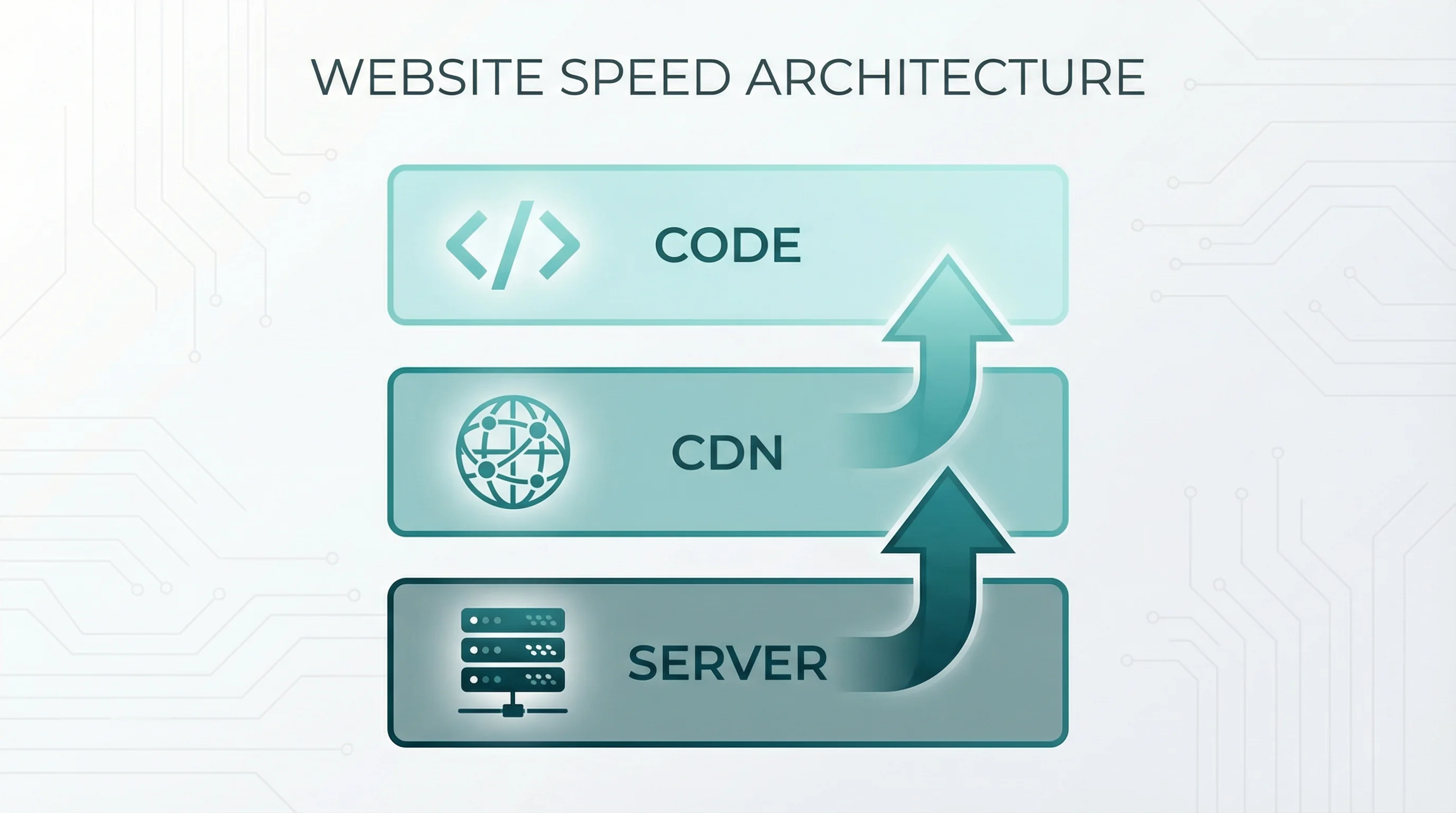
Your server generates every page. If it's slow, everything else is slow too. Four things matter here:
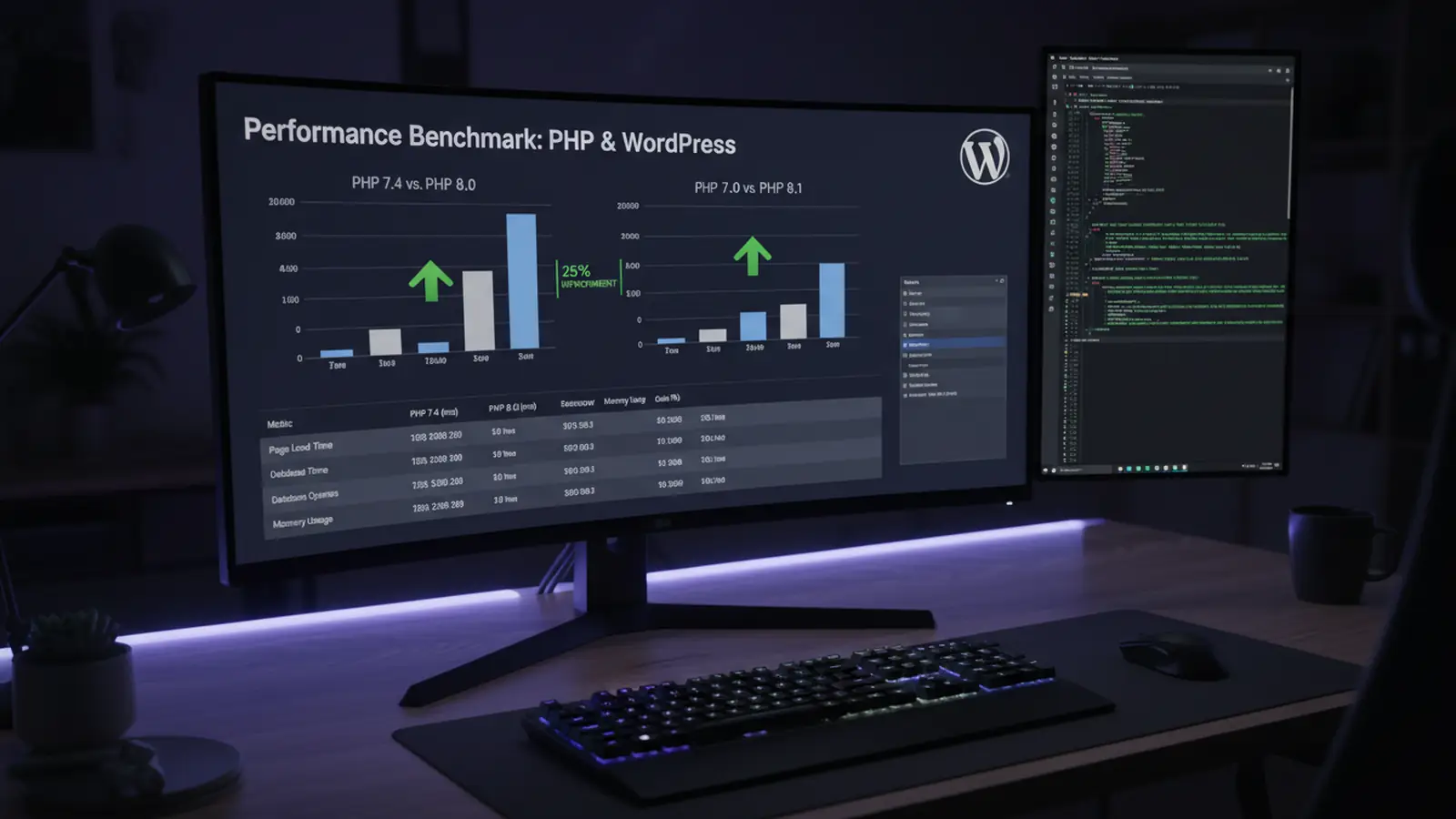
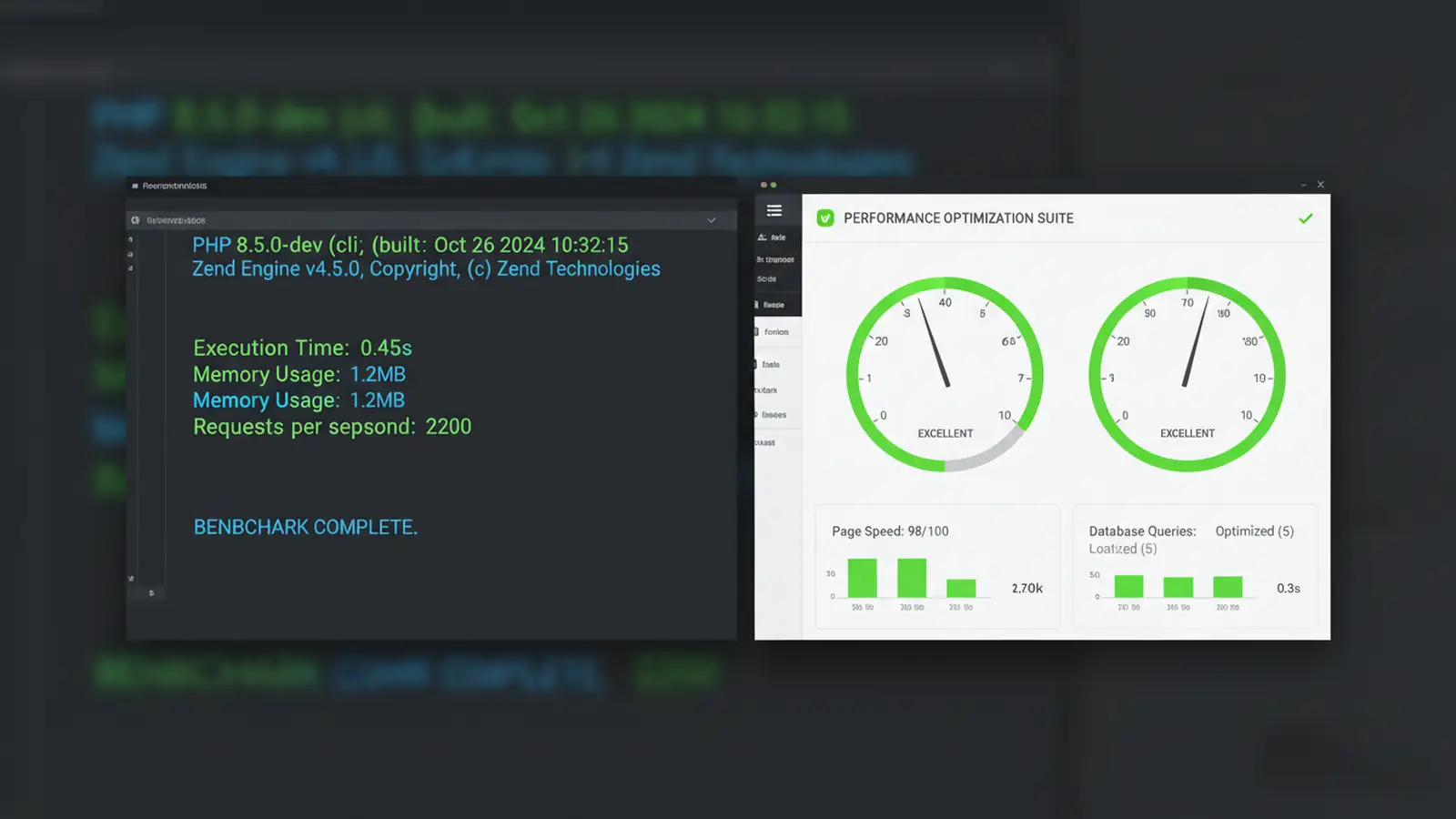
PHP version. WordPress runs on PHP. Our own production benchmarks show WordPress 6.9 on PHP 8.5 loads 23% faster than the same site on PHP 8.3. That's free performance just from switching a dropdown in your hosting panel. If your host still runs PHP 8.1 (which reached end-of-life in December 2025), your site is slower and less secure than it needs to be.
Storage type. NVMe SSDs read data roughly 6x faster than traditional SATA SSDs. Every database query, every file read, every plugin load hits the disk. NVMe storage is standard on all 365i WordPress hosting plans; budget hosts often still use slower drives.
Resource limits. On most shared hosting, your site shares CPU and RAM with hundreds of others. When a neighbour's site gets a traffic spike, yours slows down. 365i runs all plans on an autoscaling cloud platform with unlimited LVE (Lightweight Virtual Environment) resources. No CPU throttling, no memory caps, no limits on PHP processes. Every plan, not just the expensive ones.
Data centre location. If your customers are in the UK but your server is in Texas, every request has to cross the Atlantic and back. That adds 80-120ms of latency before anything else happens. 365i's platform uses UK data centres by default, with additional locations in the US and Singapore for businesses with international audiences.
Layer 2: The CDN
A content delivery network caches copies of your pages at edge servers around the world. When a visitor in Manchester loads your site, they get a cached copy from London instead of waiting for the origin server to generate it from scratch.
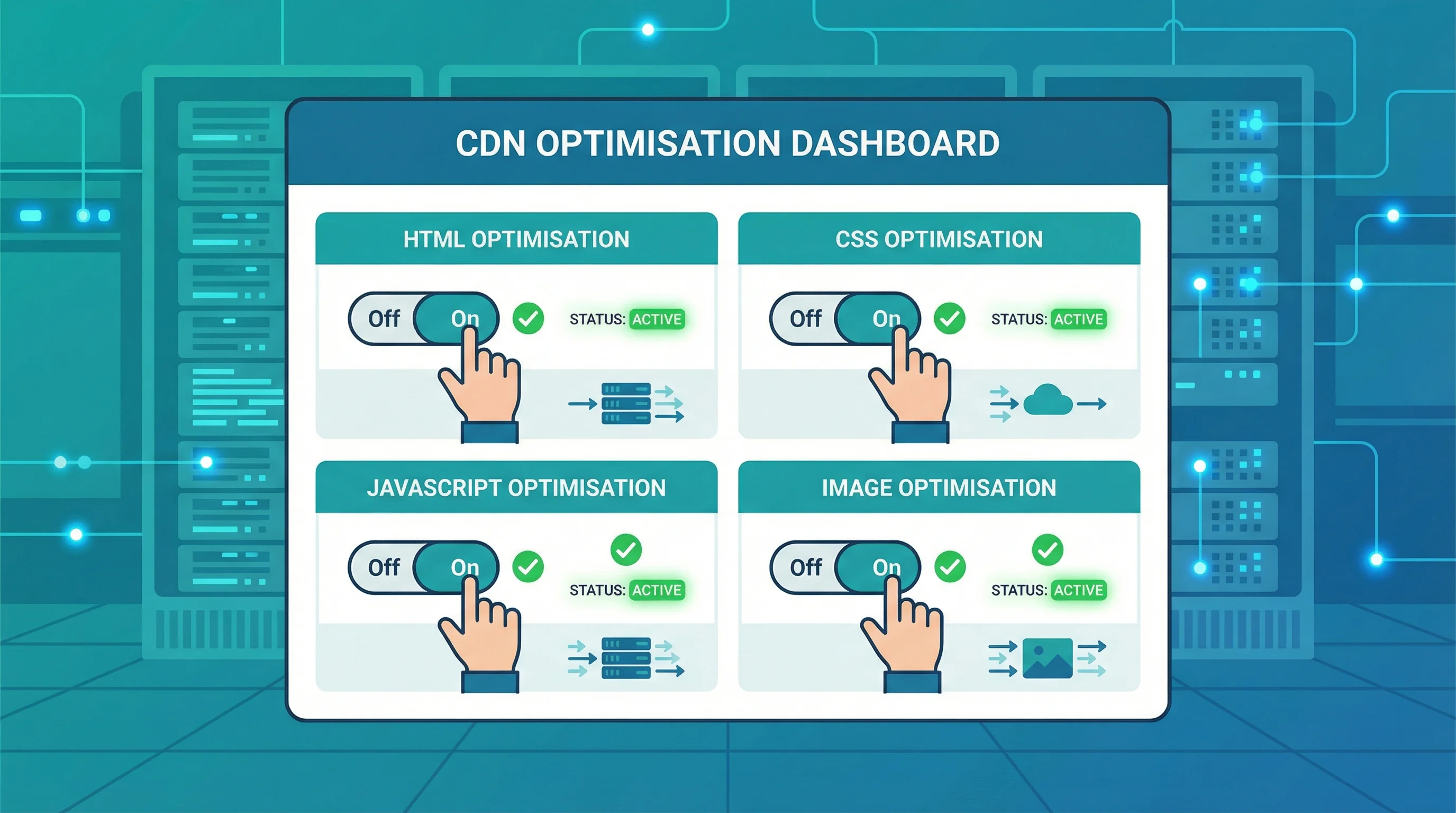
But modern CDNs do far more than caching. The 365i CDN includes 35 one-click web optimisations that handle work most people think they need plugins for:
- HTML optimisation (11 filters): collapse whitespace, remove comments, pre-resolve DNS, extend cache headers
- JavaScript optimisation (5 filters): minify JS, combine files, inline small scripts, move CSS above scripts
- CSS optimisation (8 filters): combine CSS, flatten imports, inline critical CSS, prioritise above-the-fold styles
- Image optimisation (12 filters): convert to WebP, recompress, resize to rendered dimensions, lazy load, sprite backgrounds
All of these activate with a single toggle in the hosting panel. No plugins. No configuration files. No risk of breaking your theme because you got a regex wrong. The CDN handles it at the network edge before the page even reaches the browser.
For context, 365i's CDN operates across 67 edge locations on six continents. UK response times sit around 20ms. We've measured our own homepage at 0.24 seconds load time against an industry average of 8.5 seconds for standard shared hosting.
Layer 3: Your Code
This is the layer most speed guides focus on first. It's actually the layer you should fix last, once your server and CDN are sorted.
Theme weight. Multi-purpose themes that promise 500 demos and 200 widgets load all that code on every page. A well-built theme loads only what each page needs. If your theme's CSS file is over 300KB, it's doing too much.
Plugin count (sort of). The old advice was "fewer plugins equals faster site." It's not that simple. One badly written analytics plugin that injects 400KB of JavaScript on every page does more damage than twenty lightweight, well-coded plugins combined. The issue isn't the count; it's the weight per page.
Images. Still the biggest single factor for most sites. An uncompressed 4MB hero image will tank your LCP score no matter how fast your server is. Use WebP format (or AVIF if your theme supports it), set explicit width and height attributes to prevent layout shift, and use loading="lazy" on everything below the fold.
Database. Years of post revisions, auto-drafts, spam comments, and expired transients accumulate. The real bottleneck isn't total table size (InnoDB handles that fine) but autoloaded data in the wp_options table. Every page load queries autoloaded options. If plugins have dumped megabytes of data there, it slows every single request.
Quick Wins That Take 10 Minutes
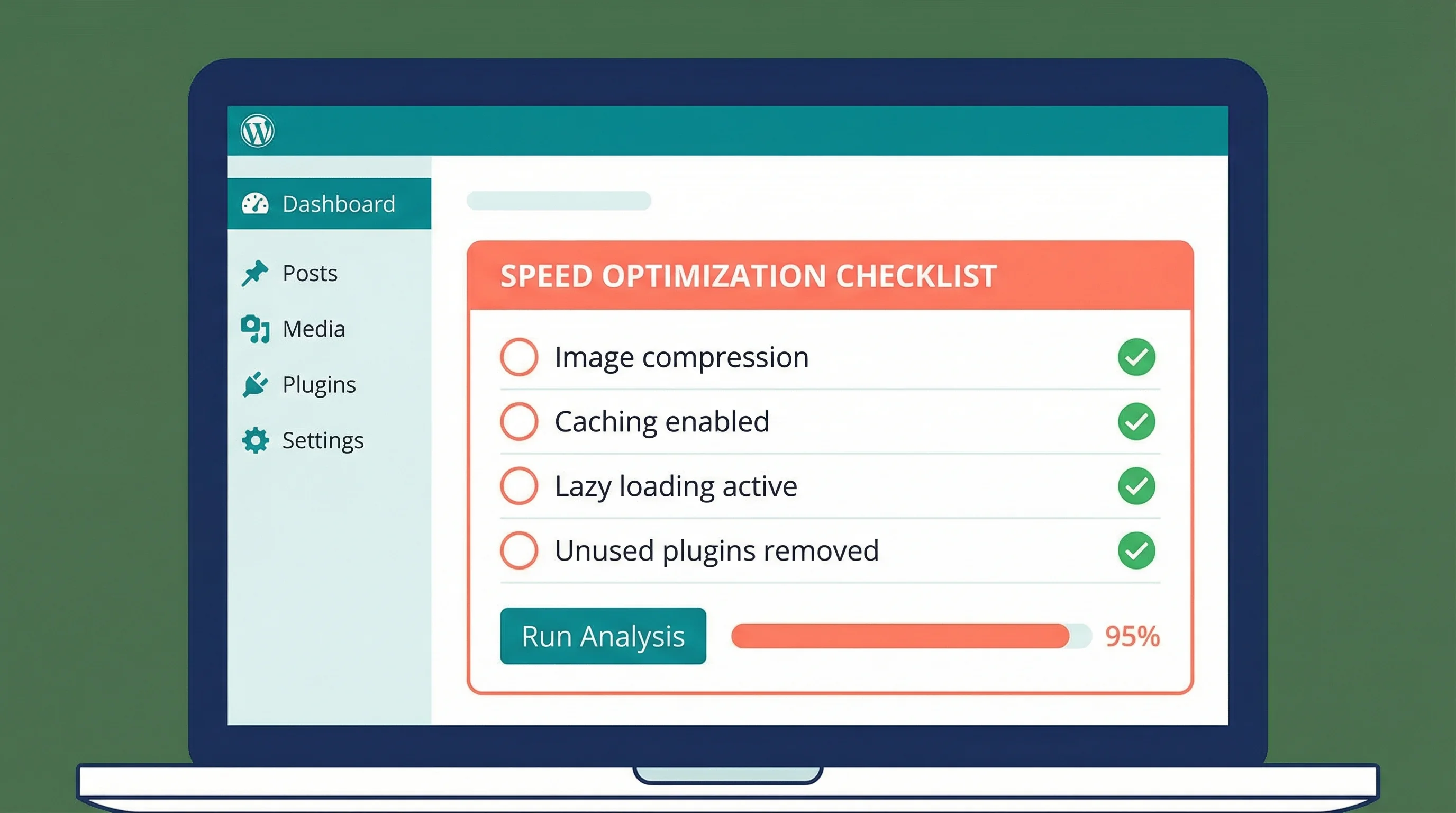
You don't need a developer for these. Any business owner with WordPress admin access can do them this afternoon.
1. Check your PHP version. Go to your hosting panel and look for PHP settings. If you're not on PHP 8.4 or 8.5, switch. Our PHP 8.5 benchmarks show double-digit speed improvements on real WordPress sites. Make a backup first, switch, and test your site. If a plugin breaks, update the plugin or replace it.
2. Install the 365i Performance Optimizer plugin. It's free, open source, and handles speculative loading (the browser pre-renders the page your visitor is most likely to click next), script deferral, JavaScript delay until user interaction, local Google Fonts for GDPR compliance, and WooCommerce conditional loading. It ships with Safe, Balanced, and Aggressive presets so you don't need to configure 40 toggles individually. The full feature walkthrough on 365i Web Design covers every setting.
3. Enable CDN optimisations. If you're on 365i hosting, open the CDN settings and click "One Click Optimisation." That activates 35 filters covering HTML, CSS, JavaScript, and images. Done in two clicks.
4. Run PageSpeed Insights. Paste your URL into pagespeed.web.dev. It'll give you a score out of 100 and a list of specific issues. Focus on the red items first. You can also use our free HTTP Header Inspector to check whether your server is sending proper cache headers and security headers.
5. Fix your images. Install a plugin like ShortPixel or Imagify to convert existing images to WebP. Set WordPress to upload at reasonable dimensions (most blog images don't need to be wider than 1600px). Add width and height attributes to any <img> tags that are missing them. This tackles both LCP and CLS in one go.
The Plugin Myth
"How many plugins is too many?" is one of the most common WordPress questions I see in support tickets. The honest answer: the number doesn't matter. The weight does.
I've seen sites with 8 plugins that load 1.2MB of JavaScript on every page. I've seen sites with 35 plugins that load 180KB total. The difference is what those plugins do and how they're built.
The worst offenders are usually social sharing widgets, chat widgets that load entire frameworks, and "all-in-one" SEO/security/caching mega-plugins that include features you'll never use but your visitors' browsers still download.
Google's web.dev documentation sums up the principle: "Optimizing for quality of user experience is key to the long-term success of any site on the web." That user experience is what your visitors feel when they click and wait. Or click and don't wait. The difference comes down to what your server sends and how much JavaScript the browser has to chew through before it can respond.
I've been running a hosting company since 2002. The shift from "count your plugins" to "measure your JavaScript" is the single biggest change in how we think about WordPress performance. If you audit nothing else, open Chrome DevTools, go to the Coverage tab, and see how much of the JavaScript your pages load is actually used. On most WordPress sites, 60-70% of it isn't.
Audit your plugins by page weight, not by count. Deactivate anything you're not actively using. And if a plugin adds frontend scripts on every page when it only needs to run on one page (contact form scripts on your blog posts, for instance), find one that loads conditionally.
When Your Hosting Is the Problem
Sometimes the issue isn't your theme or your plugins. It's where your WordPress site lives.
If your Time to First Byte (TTFB) is consistently above 600ms, your server is the bottleneck. No amount of image compression fixes a slow server response. TTFB measures how long the server takes to start sending data back to the browser. On 365i's platform, TTFB typically sits between 50-150ms for cached pages. For a worked example of what the full stack delivers in the wild, see how mcneece.com hits 97 on mobile PageSpeed using server-level optimisation, CDN edge caching, and a tuned plugin layer.
Here are the signs your hosting has become the ceiling:
- PageSpeed scores that won't budge past 60-70 despite optimisation
- TTFB above 600ms (check this with our HTTP Header Inspector)
- Intermittent slowdowns, especially during business hours when other sites on the server are busy
- Your host still runs PHP 8.1 or doesn't offer PHP 8.5
- No CDN included, or a basic CDN without web optimisation features
- Your data centre is outside the UK when your audience is primarily British
If more than two of those apply, switching hosting will do more for your speed than any plugin ever could. Our shared vs cloud hosting comparison breaks down when the upgrade makes financial sense, and our guide to the hidden costs of cheap hosting covers what budget providers actually cost in lost revenue and security incidents. For most small businesses, managed WordPress hosting starting at £5.99/month with NVMe storage, unlimited LVE resources, and the full CDN included is all you need. Sites that have outgrown shared hosting can step up to a managed cloud server from £9.99/month with dedicated CPU, RAM, and Redis caching.
Proof It Works: 365i.co.uk Scores 100/100
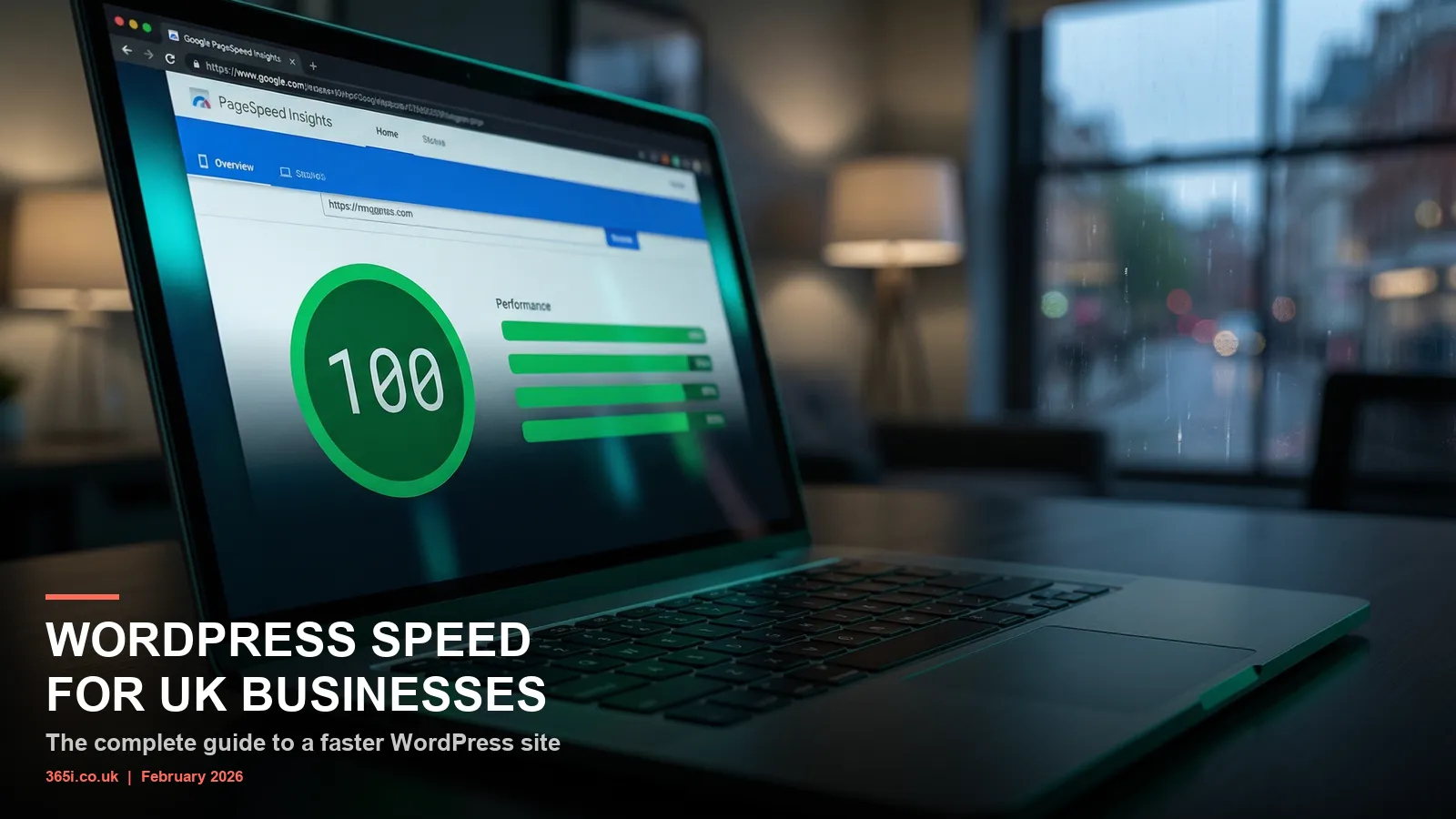
We don't just advise on speed. We build for it. The 365i WordPress Hosting page scores a perfect 100 on all four Google PageSpeed Insights metrics on mobile: Performance, Accessibility, Best Practices, and SEO.
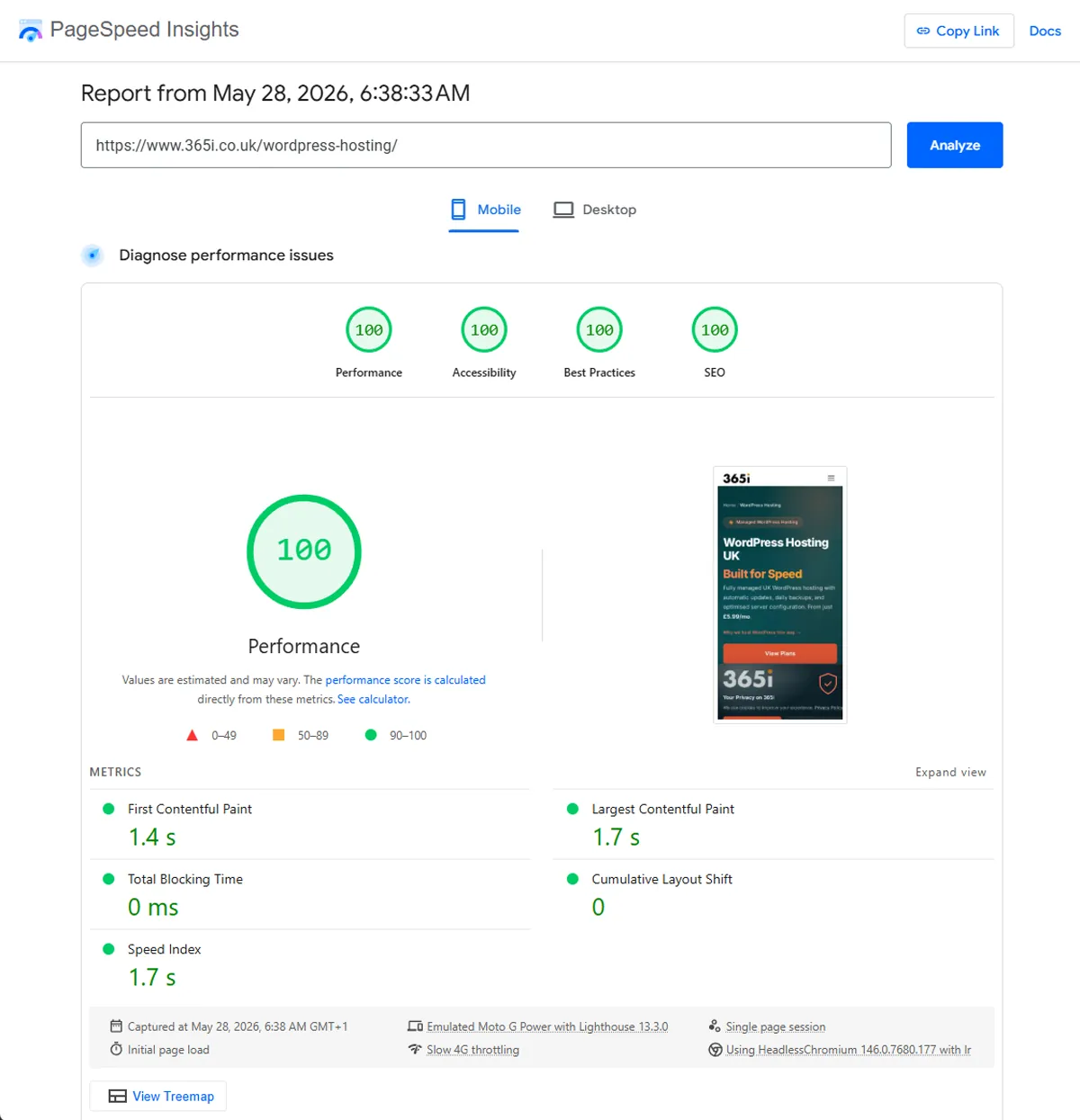
That's not a lab score on a blank page with one paragraph. It's a real production page with a full navigation menu, hero section, pricing cards for four tiers, customer reviews carousel, newsletter form, cookie consent, mega menu, and a footer with schema markup. All four green circles, all showing 100, tested on an emulated Moto G Power with throttled 4G.
The same hosting infrastructure, CDN, and optimisation tools available to every 365i customer are what make that score possible. PHP 8.5 on NVMe storage, 35 CDN optimisation filters active, critical CSS inlined, images served as WebP at the rendered dimensions, and speculative loading pre-rendering the next page before you click.
A perfect score isn't the goal in itself. The goal is a site that loads instantly, responds immediately, and doesn't shift around while your customers are trying to read it. The score just proves you got there.
Frequently Asked Questions
How fast should my WordPress site load?
Under 3 seconds on mobile, ideally under 2 seconds. Google's research shows 53% of mobile visitors leave after 3 seconds. For Core Web Vitals, aim for LCP under 2.5 seconds, INP under 200ms, and CLS below 0.1.
Do plugins slow down WordPress?
Bad plugins slow down WordPress. The number installed matters far less than the JavaScript weight each one adds to every page. Twenty lightweight plugins can be faster than three heavy ones. Audit by page weight, not plugin count.
What are Core Web Vitals and do they affect SEO?
Core Web Vitals are Google's three metrics for user experience: LCP (loading speed), INP (responsiveness), and CLS (visual stability). They are a confirmed ranking signal. Sites that pass all three get a small but measurable advantage in search results.
Does my hosting provider really affect WordPress speed?
Yes, and more than most people realise. Your server determines Time to First Byte, PHP processing speed, and storage read times. NVMe storage, current PHP versions, and UK-based data centres can cut response times by 50% or more compared to budget hosting.
Does a UK data centre make a difference for speed?
For UK visitors, yes. A US-based server adds 80-120ms of network latency to every request. With a UK data centre, that drops to under 20ms. That difference compounds across every resource your page loads: HTML, CSS, JavaScript, fonts, and images.
Do I need a caching plugin if my host has a CDN?
It depends on what the CDN does. 365i's CDN includes 35 web optimisation filters (critical CSS, JS minification, image compression, lazy loading) that cover what most caching plugins do. You may still want a WordPress-level cache plugin for page caching and cache invalidation, but you won't need one for asset optimisation.
How do I check my WordPress site's speed?
Use Google's free PageSpeed Insights for Core Web Vitals scores. Use 365i's HTTP Header Inspector to check server response headers and TTFB. GTmetrix is another good option for waterfall analysis showing exactly what loads and when.
Should I use WebP or AVIF images on WordPress?
WebP is the safe choice in 2026 with near-universal browser support and 25-30% smaller files than JPEG. AVIF offers another 20-30% compression on top of WebP but support is still growing. WordPress 6.5+ handles both natively. If your CDN converts to WebP automatically (365i's does), start there.
Ready to See the Difference Fast Hosting Makes?
Every 365i WordPress plan includes NVMe storage, unlimited LVE resources, a CDN with 35 web optimisation filters, and PHP 8.5 support. Plans start at £5.99/month with free migration from your current host.
Explore WordPress HostingSources
Published: · Last reviewed: · Written by: Mark McNeece, Founder & Managing Director, 365i
Editorially reviewed by: Mark McNeece on · Our editorial standards