You know your hosting is slow. Or expensive. Or both. You've read the comparison articles. Maybe you've even picked a new provider. But you haven't switched yet, because what if something breaks?
That fear keeps people on bad hosting for years. We know because we talk to them when they finally make the move. The same worries come up every time: will my emails stop working? Will Google drop my rankings? How long will my site be down? What about my database? Some people are also second-guessing the platform itself and wondering whether they should jump to Shopify, Squarespace or Wix, so we wrote an honest comparison of WordPress against those three before you make any big decisions. If you're tempted by newer platforms like Webflow or Cloudflare's EmDash, our Webflow and EmDash comparison covers what happens when you try to leave those too.
We've migrated thousands of WordPress sites to 365i since 2002. Not one of those fears has ever been as bad as people expect. This guide walks through what actually happens during a WordPress migration, step by step, so you can stop worrying and make a decision based on facts instead of fear.
What Actually Happens During a Migration
At 365i, you run the migration yourself through the Migration Centre in your control panel. You pick your old host from a list, enter your login details, and the system does the rest. No waiting for a support ticket. No booking a time slot. You can start a migration at 11pm on a Sunday if that suits you.
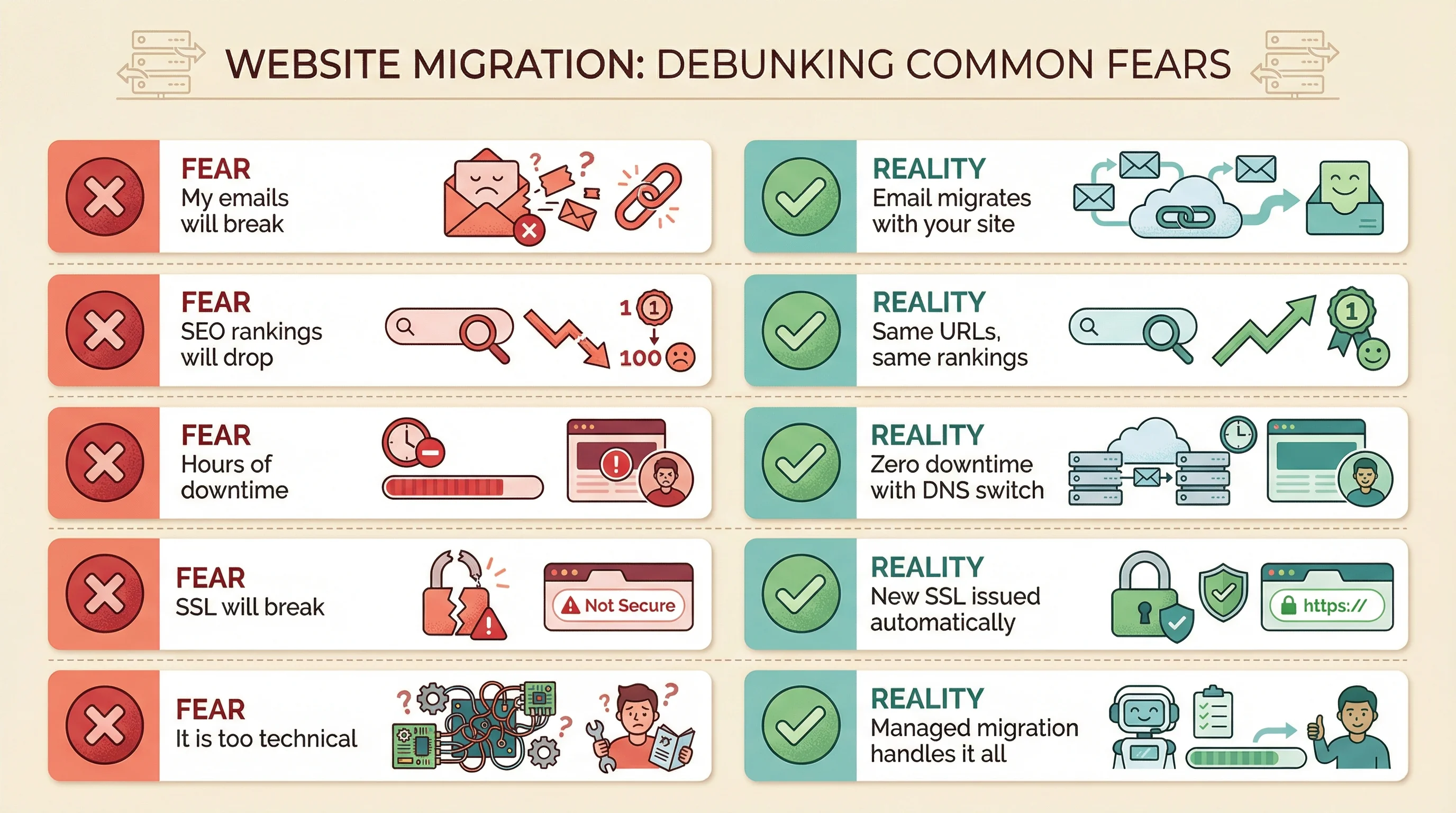
Here's what the automated process does once you hit go:
- Full backup: Your entire site is copied from the old host: files, database, media, plugins, themes. Everything. The original stays untouched.
- Restore on the new server: The backup is restored on 365i's platform. At this point, you have two identical copies of your site: one on the old host (still live) and one on the new host (ready but not public).
- Testing: You check the new copy. Pages load. Forms work. WooCommerce checkout processes. Admin login works. Plugins activate correctly.
- DNS switch: Your domain's DNS records are updated to point to the new server. This is the only moment the "switch" happens. It takes a few seconds to make the change, and propagation happens gradually over a few hours.
- Verification: Once DNS has propagated, you confirm the live site on the new hosting. SSL is active. Email is working. Done.
The key thing: your old site stays live until the DNS switch. There's no gap. No moment where your site is "between" hosts. Visitors see either the old version or the new version, never a blank page. And if anything goes wrong or you get stuck, 365i's support team will help you get it sorted.
Will My Emails Break?
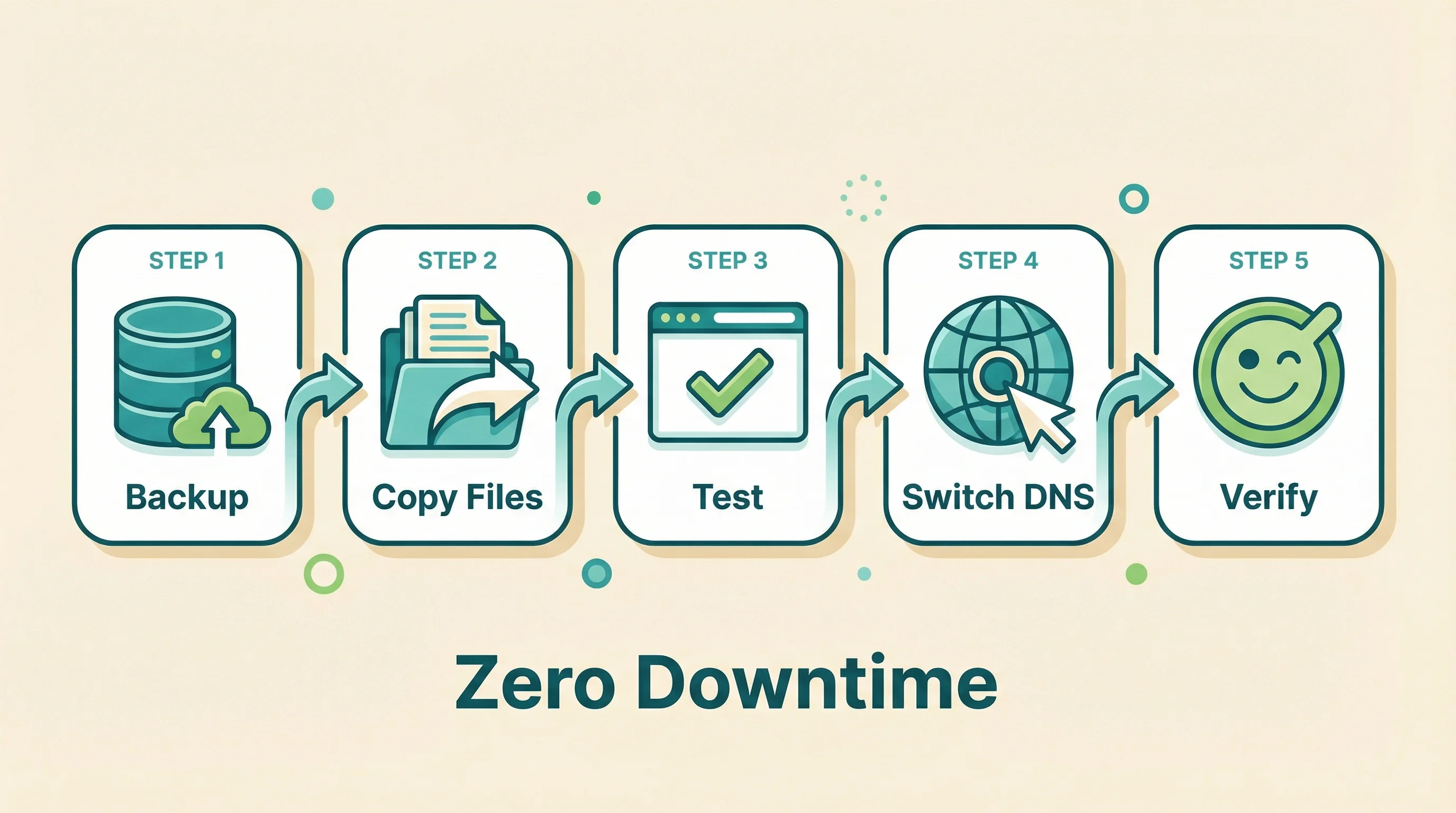
This is the number one fear. And it's the most misunderstood.
Your email doesn't live "on" your website. Email is handled by MX records in your DNS, which point to your mail server. If your email is hosted with Microsoft 365, Google Workspace, or any external email provider, migrating your website changes nothing about your email. The MX records stay exactly the same.
If your email is hosted with your current web host (on the same server as your site), then yes, your email needs to move too. But this is a separate process from the website migration, and 365i has a dedicated tool for it.
The Email Migrations Tool
Your 365i control panel includes a separate Email Migrations tool, independent from the website Migration Centre. You pick the source type (IMAP, Gmail, or Outlook), enter your old mailbox credentials, choose the destination mailbox on 365i, and hit sync. The tool copies your emails across.
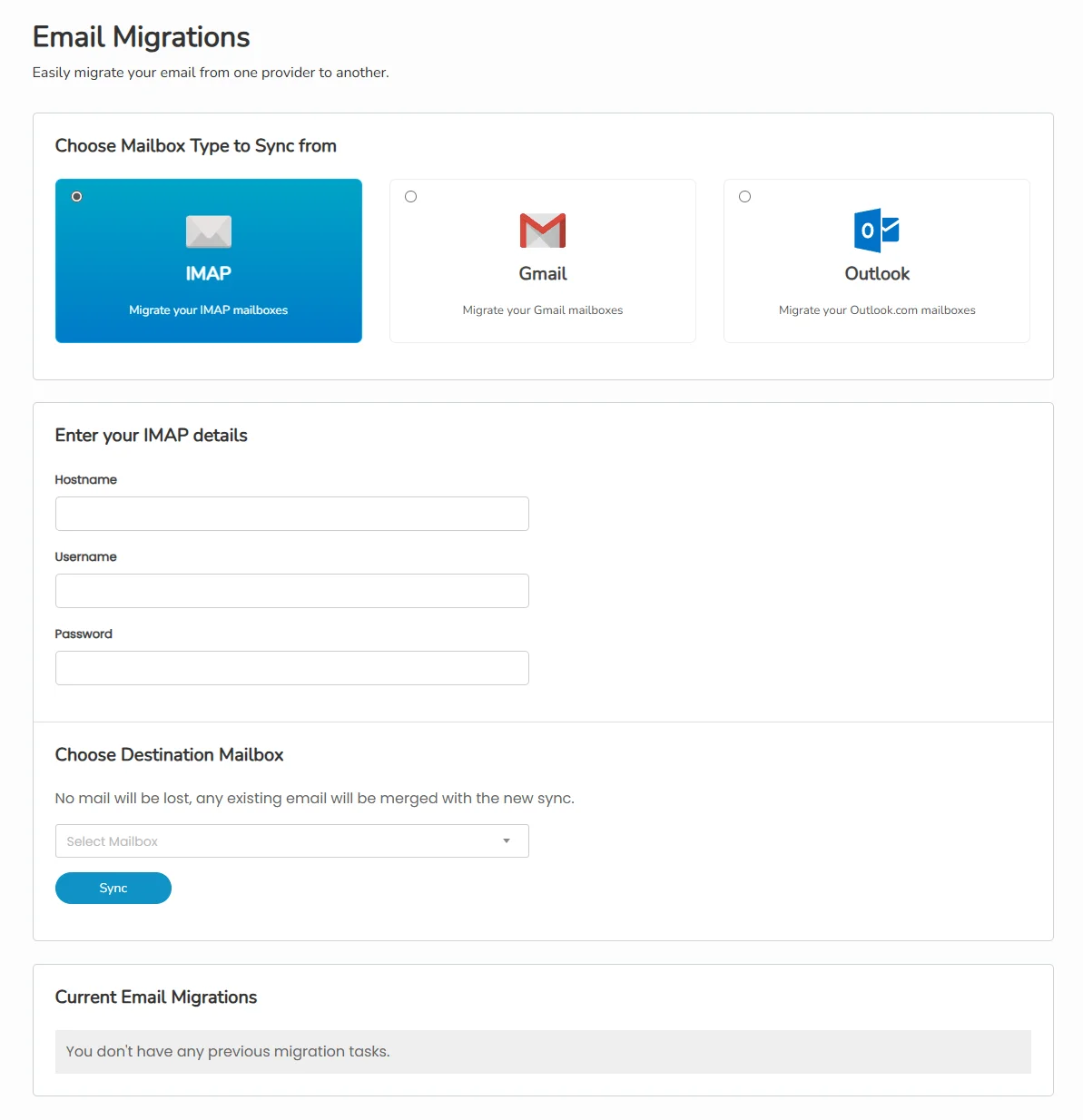
The useful bit: you can re-sync as many times as you need. New emails will keep arriving at your old host while MX records propagate (which can take up to 24 hours). Run the sync again before cutting over, and those new messages get pulled across too. No emails fall through the gap.
One thing to be aware of: the tool can only migrate what's still on the old server. If you've been using POP3 (which downloads emails to your computer and removes them from the server), your old mailbox may be empty or near-empty. Those emails live on your local device, not on the server, so there's nothing for the migration tool to copy. If you're unsure, check your email client settings. IMAP keeps emails on the server. POP3 often doesn't.
Once your mailboxes are synced, update your DNS records to point to 365i. SPF is added automatically. DKIM and DMARC can be configured in the control panel in seconds. We covered email authentication in detail in a separate guide.
Will My SEO Rankings Drop?
Only if someone does something wrong. And the Migration Centre automates the process to prevent exactly that.
Google doesn't care which server your site is on. It cares about the URL structure, the content, and the page speed. In a clean migration:
- Your URLs stay exactly the same (same slugs, same structure)
- Your content doesn't change
- Your page speed usually improves (that's often the reason for switching)
- Your canonical tags, meta descriptions, and schema markup all transfer with the site
The one thing that can cause a temporary ranking wobble is a change in IP address. When your site moves to a new server with a new IP, Google recrawls it over the following days. In rare cases, you might see a minor fluctuation for a week or two. But if the site is faster on the new host (which it usually is), rankings tend to settle higher, not lower.
If your site is already slow, staying put is worse for your SEO than any temporary migration effect. Google uses page speed as a ranking factor. A faster host improves your Core Web Vitals scores, which improves your rankings.
How Long Will My Site Be Down?
Zero seconds, if the migration is done properly.
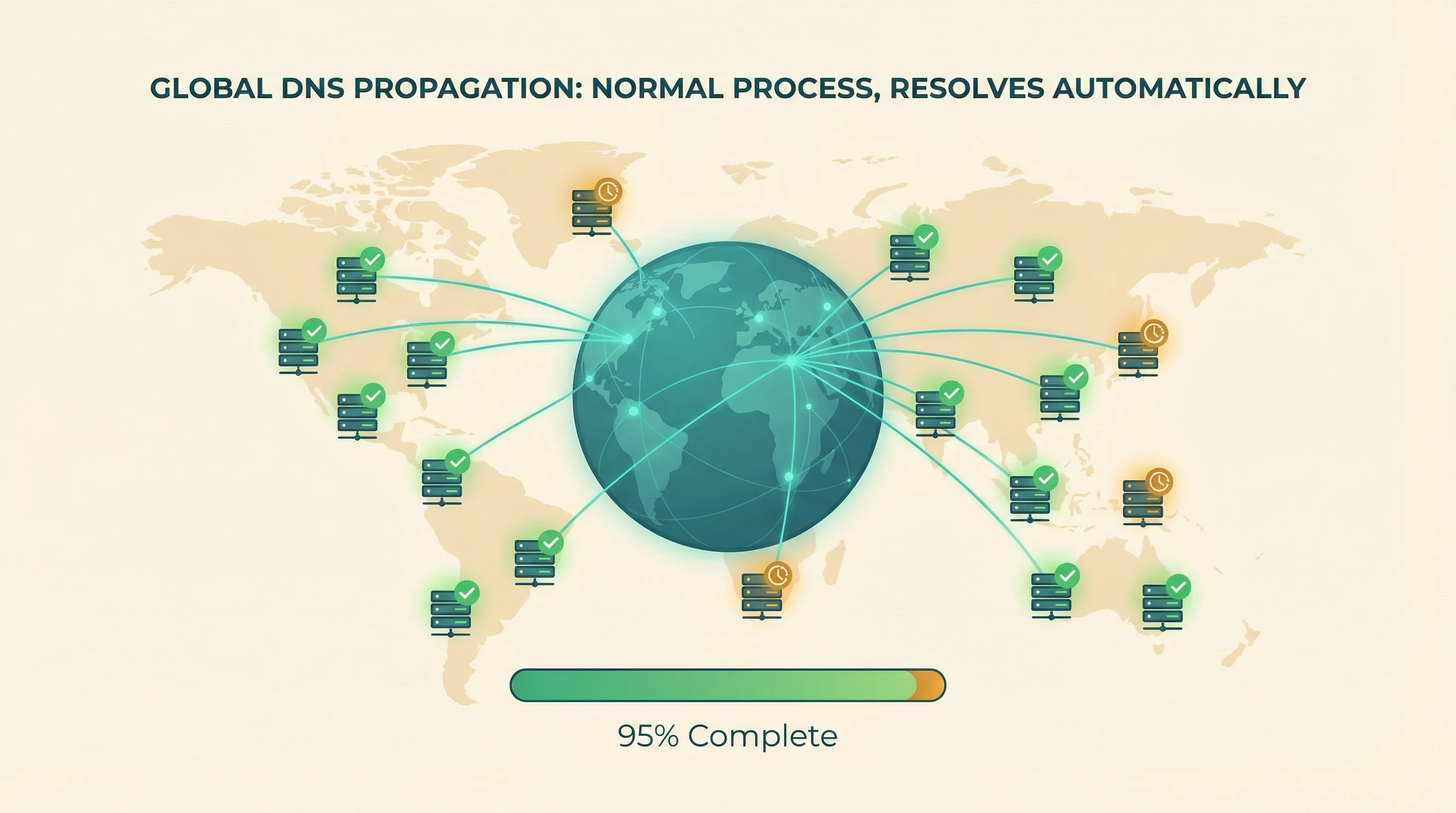
Your old site stays live throughout the entire process. The DNS switch is the only transition point, and DNS propagation is gradual: some visitors start seeing the new server within minutes, while others may take a few hours. But crucially, visitors always see a version of your site. Either the old one or the new one. Never nothing.
The worst-case scenario? A visitor's ISP is slow to update their DNS cache, so they see the old host for a few extra hours. Your old hosting is still running during this window, so they see your site as it was. No downtime. No error pages.
What About My SSL Certificate?
Your existing SSL certificate is tied to your current server, so it won't transfer. But this isn't a problem because your new host issues a fresh one.
At 365i, free Let's Encrypt SSL certificates are provisioned automatically as soon as your domain resolves to our servers. There's no manual setup. No certificate signing requests. No waiting. The new SSL is active within minutes of DNS propagation completing, and HTTPS just works.
The only gap you might notice: during the DNS propagation window, some visitors hitting the new server before SSL is provisioned might see a brief HTTP connection. This typically lasts minutes, not hours, and most visitors won't notice it.
What About My Database and Media Files?
Everything transfers. Your WordPress database (posts, pages, comments, plugin settings, user accounts, WooCommerce orders) is exported from the old server and imported to the new one. Your media library (every image, PDF, video) is copied file by file.
The result is an identical site. Same content. Same settings. Same user accounts with the same passwords. If you logged into wp-admin on Tuesday with the old host, you can log in on Wednesday with the new host using the same credentials.
What Does Migration Cost?
At 365i, nothing. Every hosting plan includes free access to the Migration Centre, a self-service tool built into your control panel. You select your old host, enter your credentials, and the system pulls everything across automatically: files, database, emails, the lot. No terminal commands, no migration plugins, no database exports.
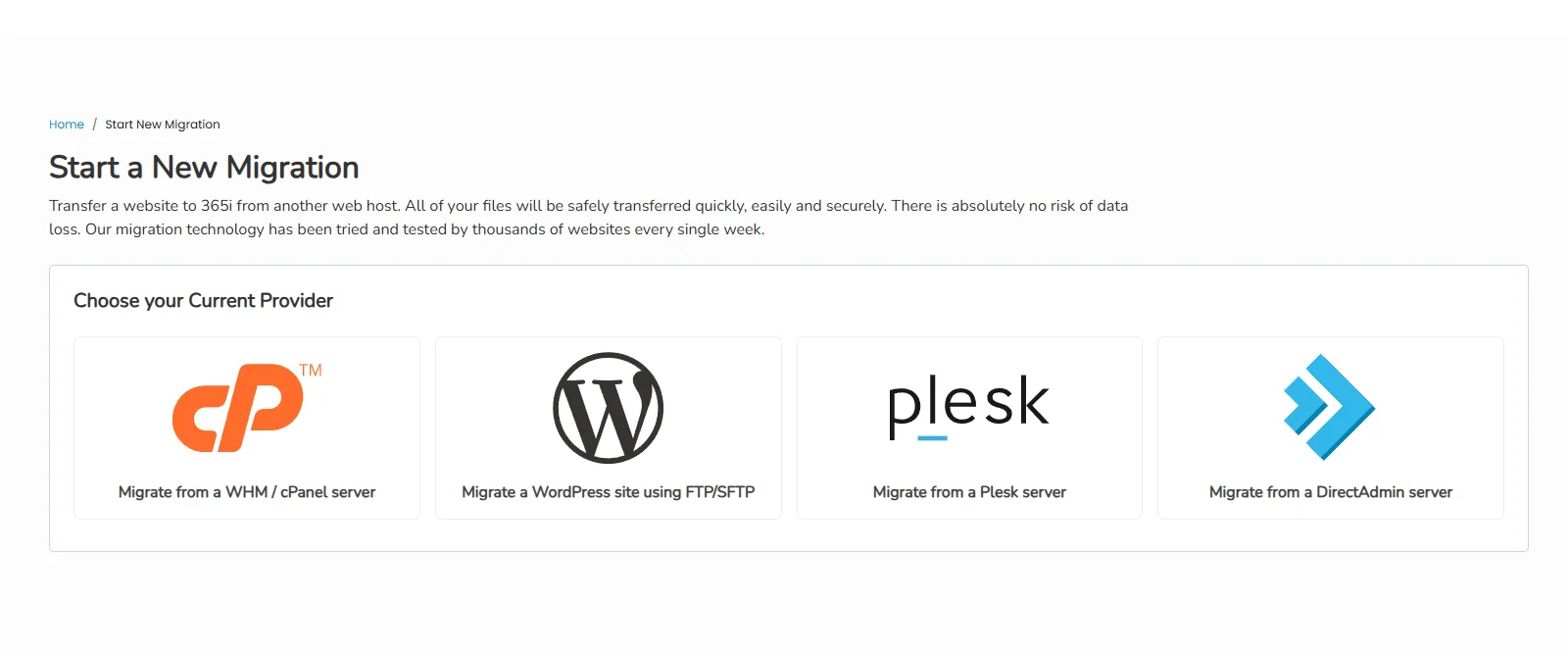
Because it's self-service, you can run it whenever you want. Midnight on a Tuesday, Sunday afternoon, bank holiday Monday. You're not waiting for a support ticket to be picked up. And if you hit a snag, 365i's support team is there to help you get it finished.
Some providers charge for migration. Bluehost has historically charged around £149 for assisted migration. Others offer free migration but handle it through a WordPress plugin (which can miss custom configurations, cron jobs, or non-standard file locations). 365i's Migration Centre works at the server level, not through a plugin, so it catches everything.
If you're paying inflated renewal prices on your current host, the migration pays for itself immediately by bringing your monthly bill back to a fair rate. And if you're on hosting that's costing you more than you think through hidden fees and slow speeds, the long-term saving is even bigger.
Frequently Asked Questions
How long does a WordPress migration take?
The migration itself (backup, transfer, testing) typically takes 1-4 hours depending on site size. DNS propagation takes an additional 2-24 hours to complete worldwide. Your old site stays live throughout, so there's no downtime during the process.
Will my website go down during migration?
No. Your old site stays live until DNS propagation points visitors to the new server. Visitors always see one version or the other. There's no gap where the site is unavailable.
Will I lose my Google rankings if I switch hosts?
No. Google ranks URLs and content, not server IP addresses. Your URLs, content, and metadata all transfer intact. If your new host is faster, your rankings typically improve because page speed is a ranking factor. Minor fluctuations for 1-2 weeks after an IP change are normal and resolve on their own.
Will my emails stop working if I switch hosting?
Not if handled properly. If your email is with Microsoft 365 or Google Workspace, it's completely unaffected. If your email is hosted with your web host, 365i has a separate Email Migrations tool that syncs your mailboxes across. You can re-sync as many times as needed while MX records propagate, so no emails get lost in the gap. One caveat: if you use POP3, your emails may already be on your local device rather than the server, so there may be nothing to migrate.
What about my WooCommerce orders and customer data?
Everything in your WordPress database transfers: orders, customer accounts, product data, coupons, reviews. The new site is an identical copy. Customers can log in with the same credentials and see their order history as normal.
Do I need to back up my site before migrating?
Your migration provider should take a full backup as part of the process. But having your own backup as insurance is always good practice. Download a copy of your files and database before the migration starts, just in case. Once you're settled in, it's worth understanding how your host's ongoing backups actually work, because retention and one-click restore matter long after the move.
How much does WordPress migration cost?
At 365i, migration is free with every hosting plan. The Migration Centre is a self-service tool in your control panel: pick your old host, enter your details, and the system does the rest. Some other providers charge £50-150 for assisted migration. Others offer free migration but use WordPress plugins that can miss custom configurations.
Ready to Switch? The Migration Centre Does the Heavy Lifting
Every 365i hosting plan includes free self-service migration. Pick your old host, enter your details, and the system transfers your files, database, and email automatically. Run it any time, day or night.
Learn About Free MigrationPublished: · Last reviewed: · Written by: Mark McNeece, Founder & Managing Director, 365i
Editorially reviewed by: Mark McNeece on · Our editorial standards