
Your WordPress contact form submissions vanish. WooCommerce order confirmations never reach customers. Password reset emails disappear. You check the spam folder and there they are, buried alongside phishing attempts and lottery scams.
The usual advice? Install WP Mail SMTP. Over 3 million WordPress sites have done exactly that. But here's what those guides don't explain: the plugin is a workaround for a hosting problem. If your hosting handles email authentication properly in the first place, you don't need it.
This guide explains why WordPress emails fail at the server level, what SPF, DKIM, and DMARC actually do, and how to fix the problem once so you never think about it again.
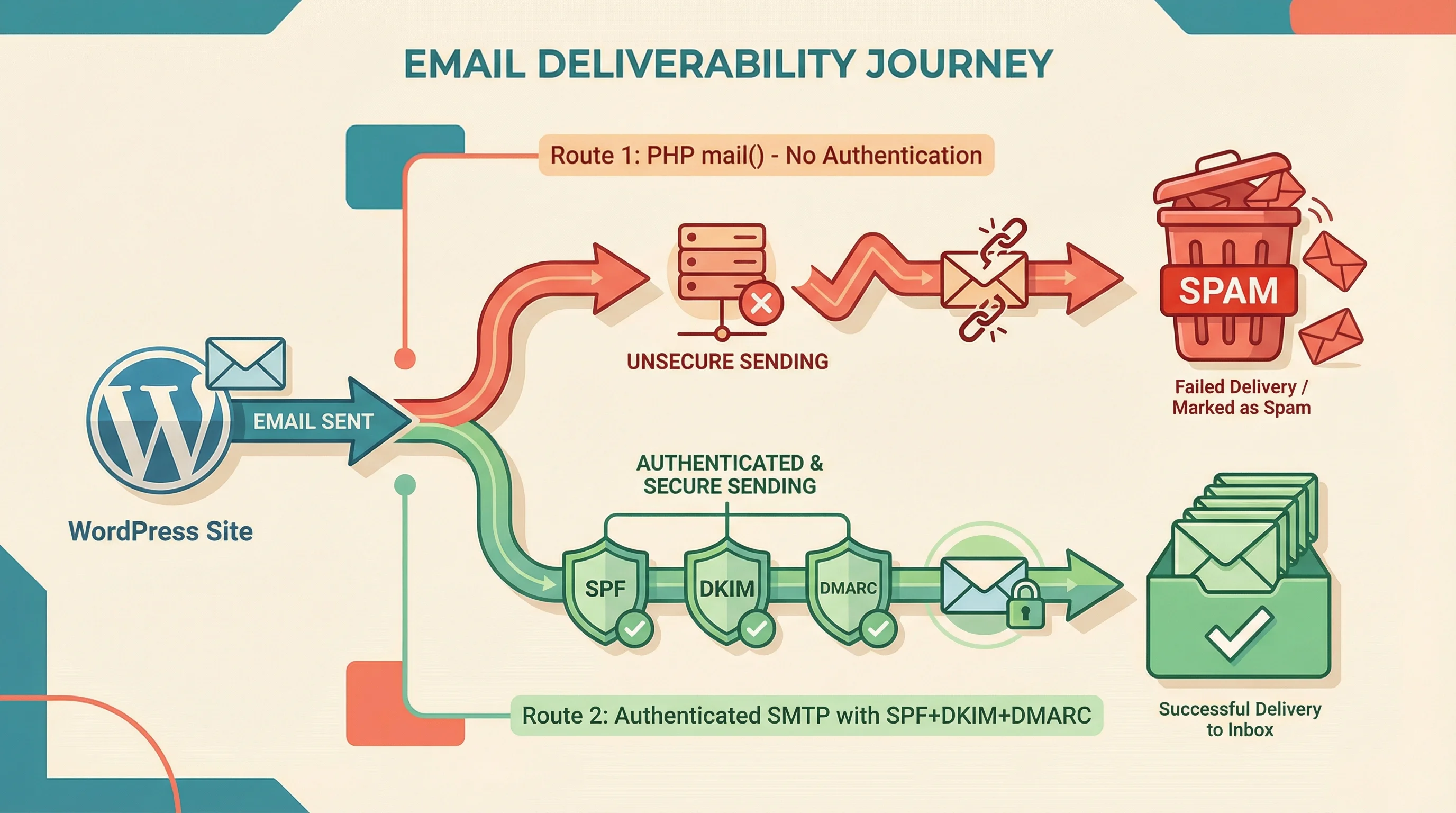
Why WordPress Emails Fail
WordPress uses PHP's built-in mail() function to send emails. Contact form submissions, order confirmations, user registrations, password resets: they all go through mail() by default.
The problem is that PHP mail() sends email with no proof of identity. No signature. No verification that the sending server is authorised to send on behalf of your domain. Gmail, Outlook, and Yahoo see an email claiming to be from your-business.co.uk but with no way to confirm it's real. So they do the sensible thing: they flag it as suspicious or reject it outright.
Think of it like posting a letter with no return address. The Royal Mail will deliver it, but the recipient has every reason to be suspicious. Email works the same way. Without authentication, your emails look identical to spam.
Since February 2024, Google and Yahoo have required DKIM and DMARC authentication for all senders, not just bulk mailers. If your WordPress site sends even a handful of emails per day without proper authentication, they're increasingly likely to bounce or land in spam.
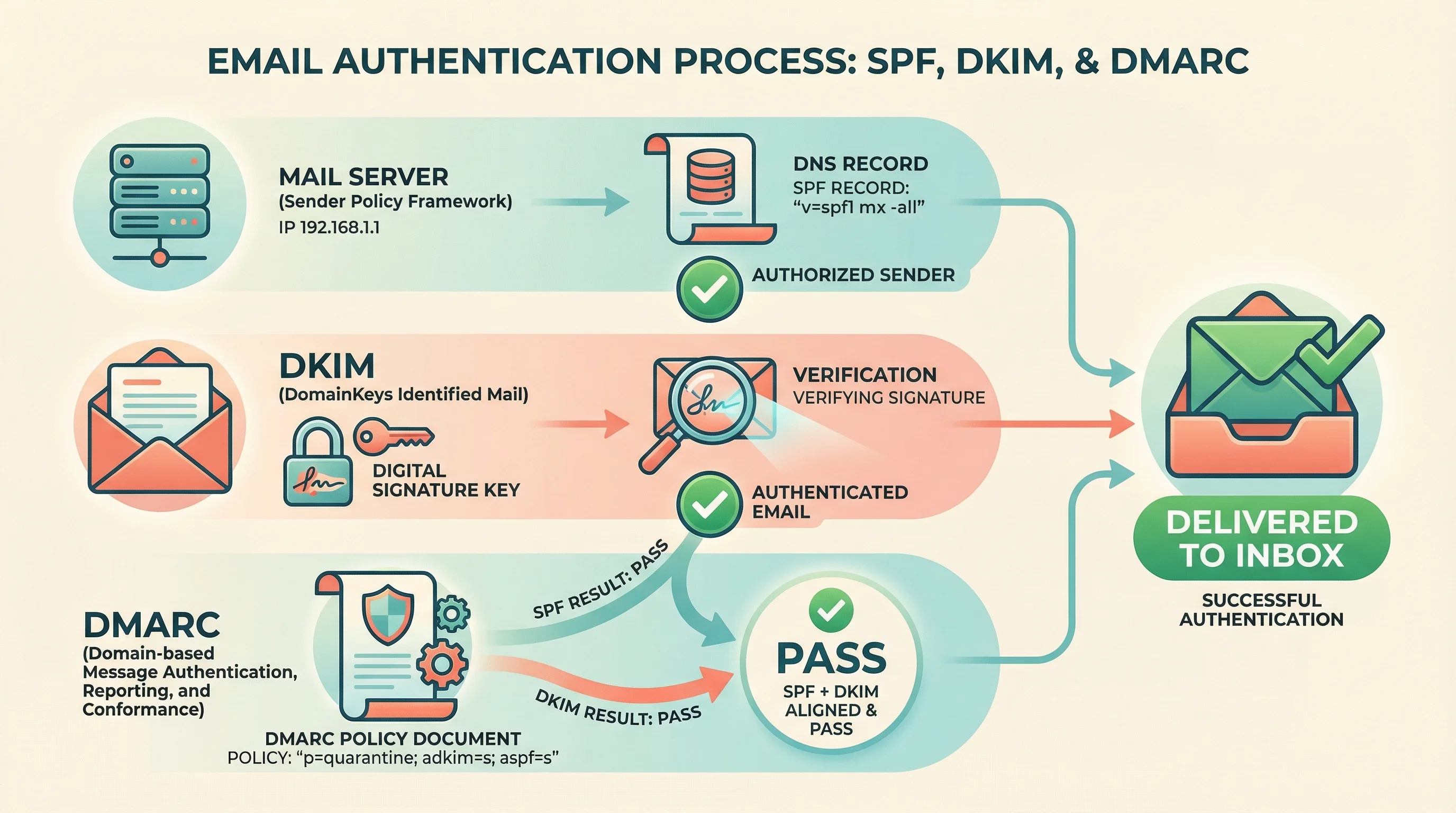
SPF, DKIM, and DMARC: What They Actually Do
These three acronyms get thrown around a lot, usually without much explanation. Here's what each one does in plain English.
SPF (Sender Policy Framework)
SPF is a DNS record that lists which servers are allowed to send email on behalf of your domain. When Gmail receives an email from you, it checks your SPF record against the IP address of the server that sent it. If the IP matches, the email passes SPF. If it doesn't, the email looks forged.
At 365i, we automatically add the correct SPF record to your DNS when you set up hosting. You can see it and edit it if you need to (for example, if you also send through Mailchimp or Brevo), but the default covers email sent from our servers out of the box.
You can check your own SPF record right now using our free DNS Lookup tool. Type in your domain and look at the TXT records section. If there's no SPF record, that's your first problem.
DKIM (DomainKeys Identified Mail)
DKIM adds a cryptographic signature to every email your server sends. The receiving mail server checks this signature against a public key stored in your DNS. If the signature matches, the email hasn't been tampered with and it came from an authorised sender.
Without DKIM, there's no way for Gmail to prove your email wasn't modified in transit. And since February 2024, Google requires DKIM for all senders. Not optional.
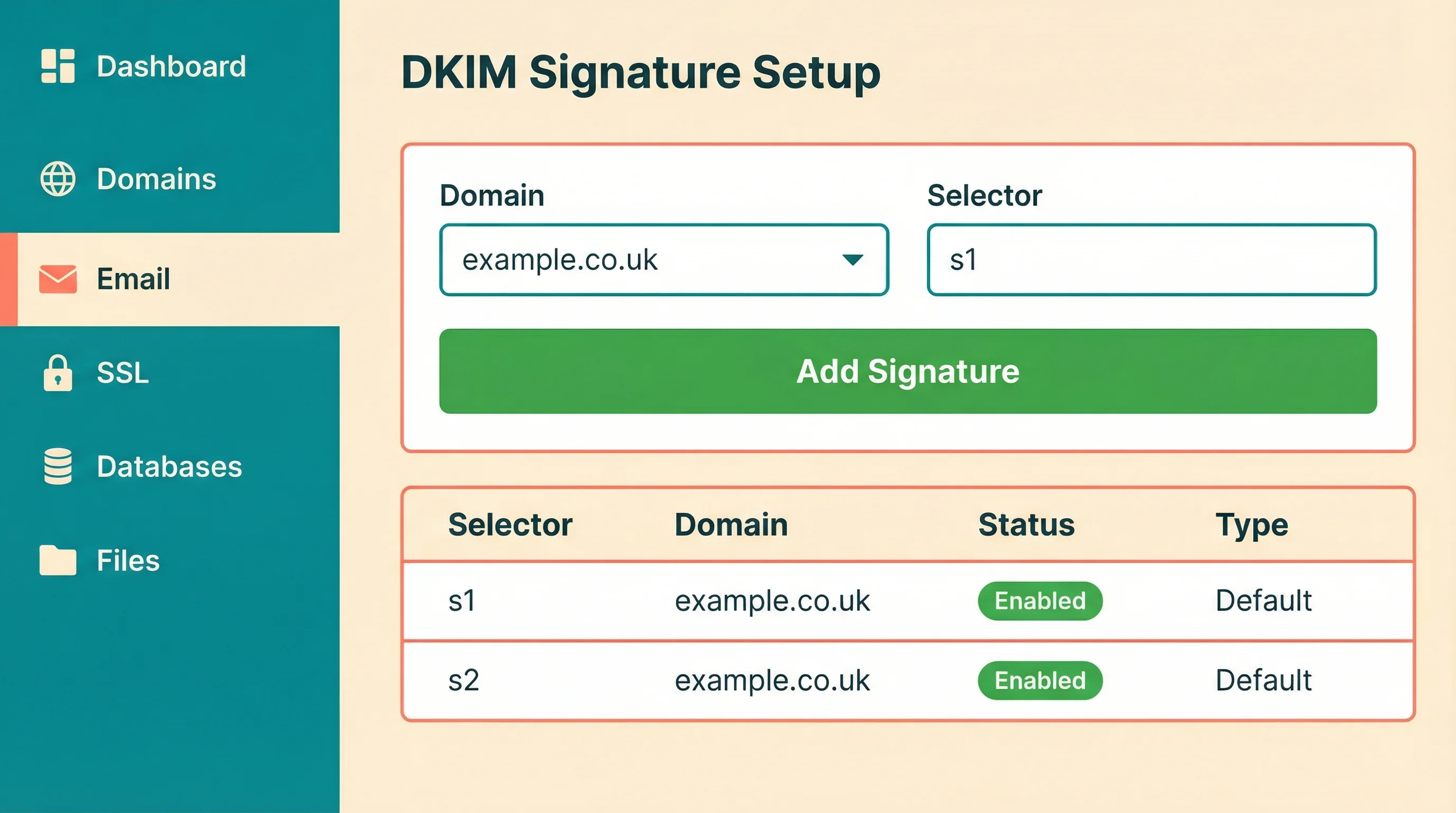
In the My365i control panel, adding DKIM takes about ten seconds. Navigate to Email, click Domainkeys (DKIM), select your domain, and hit Add Signature. If you're using our nameservers, the DNS record is added automatically. No manual TXT record copying required.
DMARC (Domain-based Message Authentication, Reporting & Conformance)
DMARC ties SPF and DKIM together with a policy. It tells receiving mail servers what to do when an email fails authentication: accept it anyway, quarantine it (send to spam), or reject it entirely.
Even a DMARC policy set to "none" (monitoring mode) tells Gmail and Yahoo that you've set up authentication and you're paying attention. That alone improves deliverability. Our analysis of Cloudflare's 2026 threat report found that 46% of emails globally fail DMARC checks, which means having it in place already puts you ahead of nearly half of all email senders.
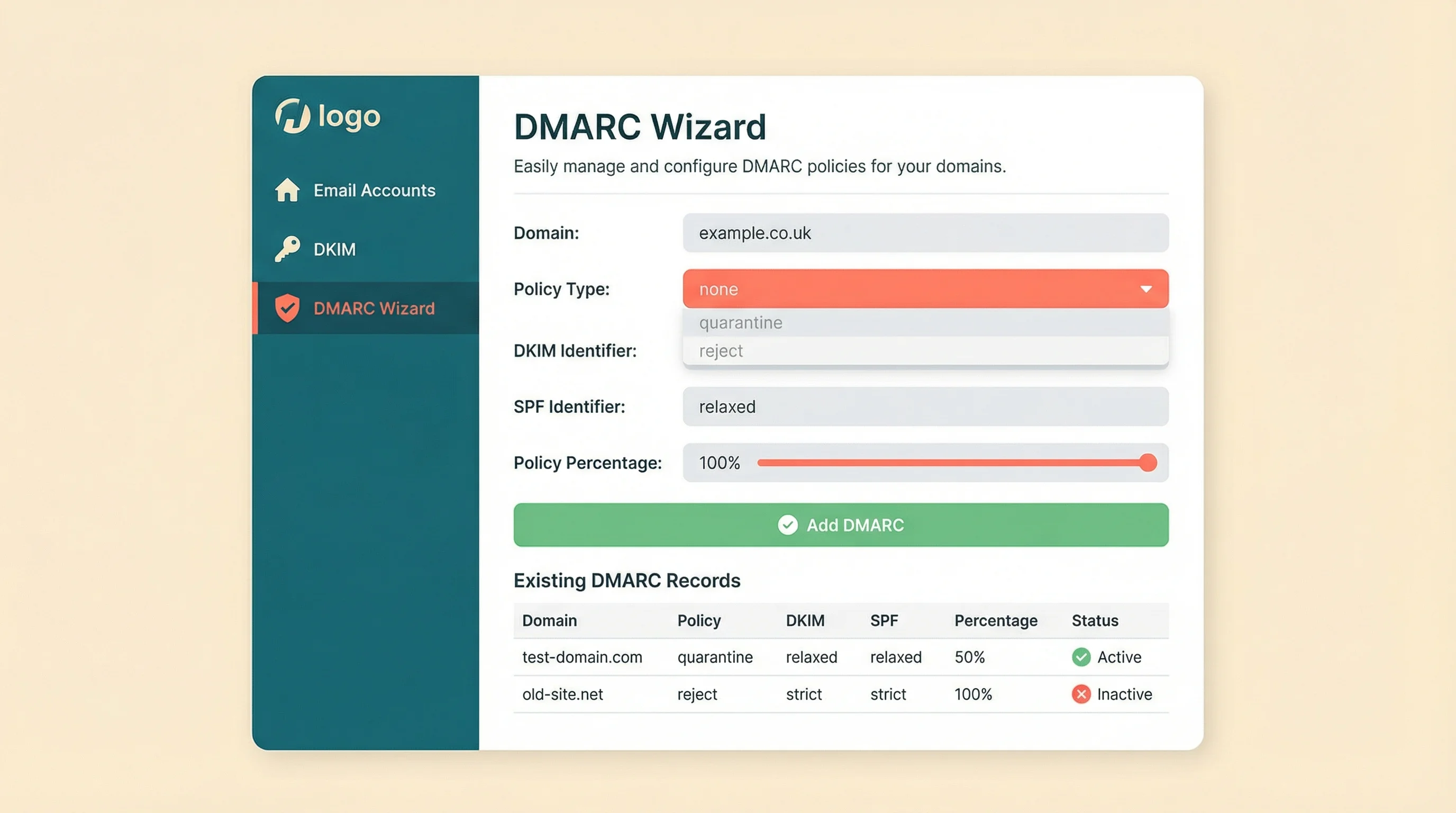
The DMARC Wizard in My365i walks you through the setup. Start with "none" as your policy type while you monitor results, then tighten it to "quarantine" or "reject" once you're confident all your legitimate email is properly authenticated. We wrote a full guide on setting up DNS records that covers the technical details step by step.
What Happens When Your Site Gets Compromised
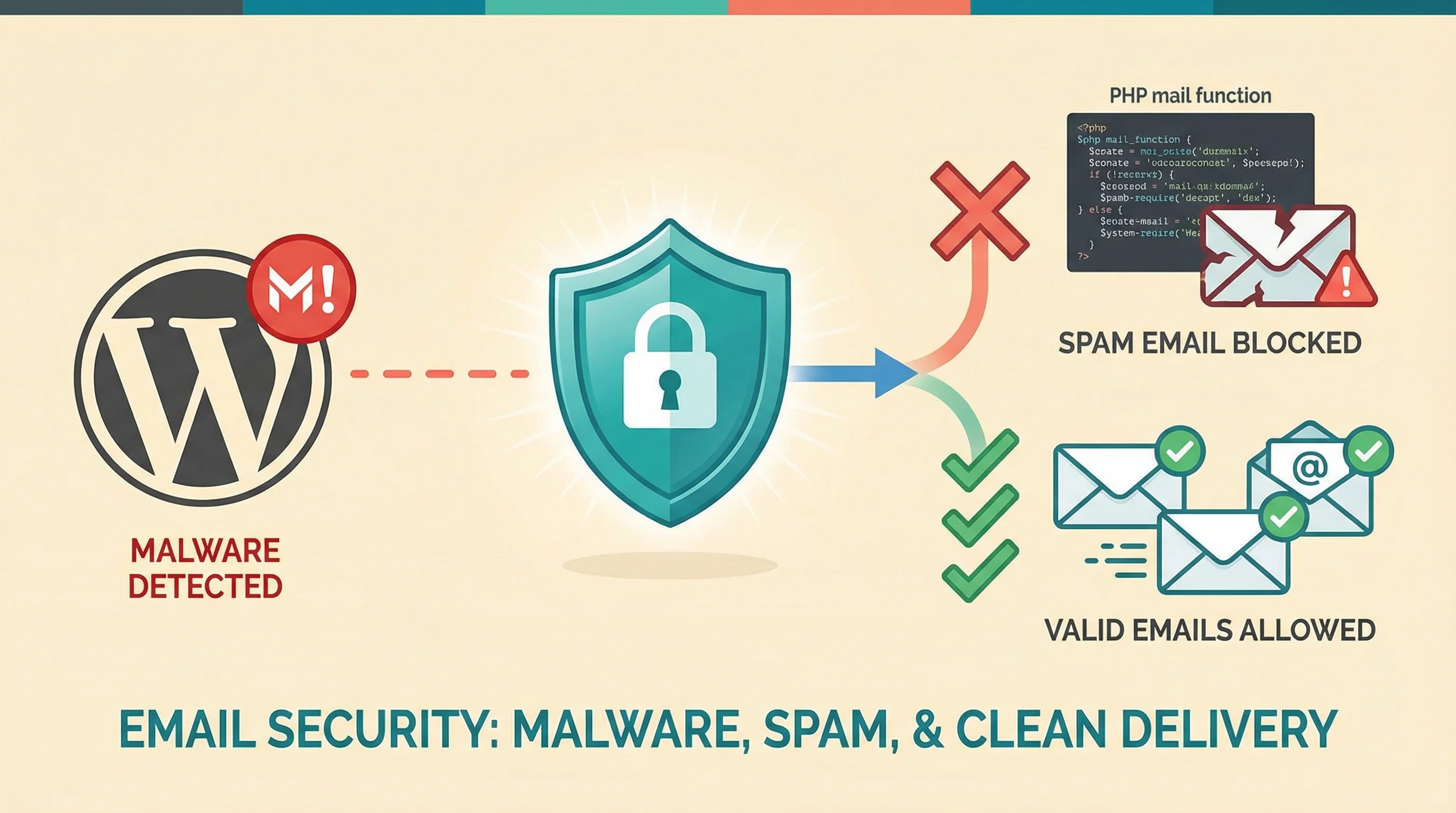
WordPress sites get hacked. It happens. And one of the first things malware does is hijack PHP mail() to send spam from your server. Thousands of phishing emails, all going out under your domain name. Your IP address gets blacklisted. Your legitimate emails stop arriving. Sometimes the blacklisting takes weeks to reverse.
At 365i, we scan every hosted site for malware daily. If we detect a compromise, we automatically disable PHP mail() on the affected account. Your site stays up, but it can't send spam. This protects your domain reputation and keeps our entire network off email blacklists.
There's a catch worth knowing about, though. If you've configured your WordPress site to send email through an external SMTP service (Mailchimp, SendGrid, Brevo, or any third-party provider), that traffic bypasses our servers entirely. We can't block it because it never touches PHP mail(). The emails go directly from your WordPress installation to the external provider's API. If your site picks up malware in that scenario, the compromised code can still send spam through the external service until you or the provider catches it.
That doesn't mean external SMTP is bad. It means you need to understand what you're trading off. Using our built-in email with proper SPF, DKIM, and DMARC means you get server-level malware protection included. Using an external service means you're responsible for monitoring your own outbound email for abuse.
There is a good deal more in a 365i mailbox than most people ever switch on. We wrote up what the Premium mailbox upgrade actually buys you, including the CalDAV calendar address that is not discoverable and the 401 error that looks exactly like a wrong password but isn't.
Why SMTP Plugins Are a Workaround, Not a Fix
WP Mail SMTP has over 3 million active installs. That number tells you something important: millions of WordPress sites can't send email properly through their hosting. The plugin routes email through an external SMTP server (usually Gmail, SendGrid, or Amazon SES) instead of PHP mail().
It works. But it adds complexity. You now have an external email service to manage, credentials stored in your WordPress database (or wp-config.php), another plugin to keep updated, and another potential point of failure. If the API key expires or the service changes its terms, your emails stop.
On hosting that handles email authentication at the server level, you don't need any of this. WordPress sends email through PHP mail(), the server authenticates it with SPF, DKIM, and DMARC, and it arrives. No plugin. No external service. No extra credentials to manage.
Our article on WordPress hosting that actually helps covers this from the hosting perspective: one-click DKIM, automatic SPF, the DMARC Wizard, and why these built-in tools mean fewer plugins and fewer things to break.
How to Check Your Email Authentication Right Now
This takes about two minutes.
- Open the 365i DNS Lookup tool and type in your domain.
- Check the Email Health section. It grades your SPF, DKIM, DMARC, and MX records. Green means configured. Red means missing.
- If SPF is red: Your hosting doesn't include an SPF record by default. You'll need to add a TXT record manually or ask your host to do it.
- If DKIM is red: Your outbound emails aren't being signed. On 365i, this is a one-click fix in the control panel. On other hosts, you may need to generate keys manually and add DNS records.
- If DMARC is red: You have no policy telling mail servers how to handle authentication failures. Even a "none" policy is better than nothing.
If all three show green, your email authentication is in order. If your WordPress emails are still going to spam after that, the problem is likely content-based (spam trigger words in your email body, missing unsubscribe links for marketing emails) rather than authentication-based.
We recently published a guide on diagnosing why WordPress sites are slow that follows the same approach: check the hosting layer first, then work outward. Email follows the same logic. Fix authentication at the server level, and most delivery problems disappear.
Frequently Asked Questions
Why do my WordPress emails go to spam?
WordPress uses PHP mail() by default, which sends emails with no authentication. Gmail, Outlook, and Yahoo can't verify the email is really from your domain, so they treat it as suspicious. Setting up SPF, DKIM, and DMARC at the hosting level fixes this without needing plugins.
Do I need WP Mail SMTP or a similar plugin?
Only if your hosting doesn't handle email authentication properly. If your host provides automatic SPF records and easy DKIM/DMARC setup (like 365i does), WordPress can send email natively without any plugin. The plugin is a workaround for hosts that don't configure email correctly.
What is an SPF record?
SPF (Sender Policy Framework) is a DNS TXT record that lists which servers are authorised to send email on behalf of your domain. When a mail server receives email from your domain, it checks the SPF record to confirm the sending server's IP address is approved. If it's not listed, the email fails SPF and may be rejected.
What is DKIM and why does Google require it?
DKIM (DomainKeys Identified Mail) adds a cryptographic signature to outgoing emails. The receiving server verifies this signature against a public key in your DNS. Since February 2024, Google requires DKIM for all email senders, not just bulk mailers. Without it, your emails are increasingly likely to be rejected or sent to spam.
What is DMARC and do I need it?
DMARC (Domain-based Message Authentication, Reporting & Conformance) ties SPF and DKIM together with a policy that tells receiving servers what to do when authentication fails. Yes, you need it. Even a basic DMARC policy set to "none" signals to Gmail and Yahoo that you take email authentication seriously, which improves deliverability.
How do I check if my email authentication is set up correctly?
Use a DNS lookup tool (we offer a free one) and enter your domain. Check the Email Health section for SPF, DKIM, and DMARC status. Green means configured, red means missing. All three should be green for reliable email delivery.
Why aren't my WooCommerce order confirmation emails sending?
WooCommerce uses the same PHP mail() function as the rest of WordPress. If your hosting doesn't have proper SPF, DKIM, and DMARC configured, order confirmations, shipping notifications, and customer emails will hit spam folders or never arrive. Fix the email authentication at the hosting level and WooCommerce emails will work without plugins.
Email That Actually Arrives
365i's WordPress hosting includes automatic SPF records, one-click DKIM signatures, a DMARC Wizard, and daily malware scanning that prevents compromised sites from sending spam. All plans, all included.
Explore WordPress HostingSources
Published: · Last reviewed: · Written by: Mark McNeece, Founder & Managing Director, 365i
Editorially reviewed by: Mark McNeece on · Our editorial standards