Your WordPress site is being probed right now. Not by a person. By bots. Cloudflare's 2026 threat report confirmed that 94% of all login attempts across the web are automated. They don't care if you're a corner shop or a corporate headquarters. They're testing every door on every street.
The good news: you can see exactly what those bots see in about 30 seconds. Our free WordPress Scanner checks eight things an attacker would look for, grades your site from A+ to F, and tells you how to fix every issue it finds. No plugin to install. No account to create.
Here's what you'll check:
- Open the scanner and enter your URL
- Read your security grade
- Login page protection
- XML-RPC status
- REST API user enumeration
- Exposed default files
- WordPress version exposure
- PHP debug mode
- Security headers
- Plugin version detection
- Fix the critical issues first
- Re-scan and confirm your grade
Tools you'll need
- A web browser (any modern browser works)
- The 365i WordPress Scanner (free, no sign-up)
- Access to your WordPress dashboard or hosting file manager (for fixes only)
No consumable supplies required.
Run the Scan
Two steps. Type your URL, read the result. This is the 30-second part.
Step 1: Open the WordPress Scanner

Go to 365i.co.uk/tools/wordpress-scanner and type your website address into the input field. Click Scan.
The tool sends requests to your site from our servers, checking publicly visible endpoints and response headers. It doesn't log in. It doesn't modify anything. It looks at exactly what a stranger (or a bot) would see if they visited your site right now.
You'll need to pass a quick Cloudflare Turnstile verification first. That's there to stop the tool itself from being abused by bots. Ironic, but necessary.
Tip: The scanner needs a public URL. If your site is behind a maintenance mode plugin or IP whitelist, temporarily disable those before scanning. Localhost URLs won't work.
Step 2: Read Your Security Grade
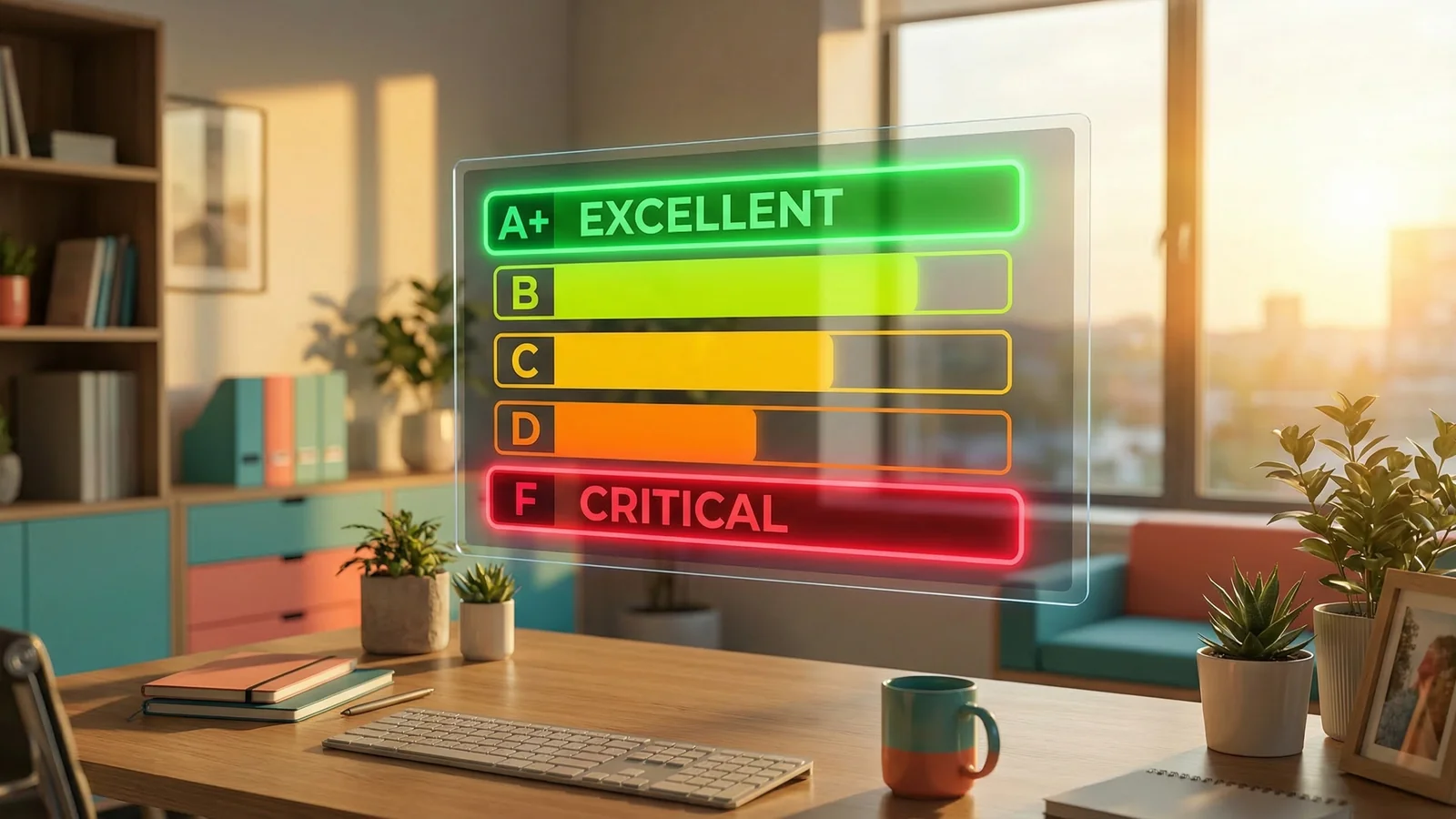
Within seconds, you'll see a letter grade from A+ down to F. Here's what each one means:
- A+ or A: Your site's external security posture is solid. Keep doing what you're doing.
- B: Good foundations, but a few things need tightening.
- C: Average. You've got exposed endpoints that bots are already poking at.
- D: Below average. Several attack surfaces are wide open.
- F: Critical. Your site has multiple exposures that attackers can exploit today.
Below the grade, you'll see each individual check listed with a colour-coded status: green (passed), amber (warning), or red (critical). Critical items are at the top. That's where you start.
"The most common mistake is that they underestimate their risk. We hear this all the time: 'Why would anyone try to hack me?' 'That would never happen to me.'"
-- Daniel Cid, Founder of Sucuri, IncomeDiary interview
I hear the same thing from clients. Every week. The reality is that bots don't pick targets. They scan IP ranges. Every WordPress install gets tested, whether it has 10 visitors a month or 10,000. The scan you just ran shows you exactly what those bots find when they knock on your door.
Understand Each Check
The scanner runs eight specific checks. Each one targets something an attacker would look for during reconnaissance. Let's walk through what they mean and why they matter.
Step 3: Check Login Page Protection

The scanner checks whether your wp-login.php page is accessible and unprotected. On most WordPress sites, it is. That means any bot can reach it, and they do.
Cloudflare's data shows 94% of login attempts are automated. Worse, 46% of the human logins use credentials already exposed in data breaches. If your login page has no rate limiting, no CAPTCHA, and no access restriction, you're relying entirely on password strength to keep attackers out.
How to fix it:
- Add a CAPTCHA or bot challenge to your login page
- Limit failed login attempts (most security plugins handle this)
- Restrict access by IP if you always log in from the same location
- Use two-factor authentication for all admin accounts
Tip: Two-factor authentication alone stops the vast majority of automated attacks. Even if a bot has your password, it can't generate the second factor.
Step 4: Check XML-RPC Status

XML-RPC is a legacy protocol that WordPress included for remote publishing. It lets external apps (like the old WordPress mobile app) communicate with your site. The problem: it also lets attackers try hundreds of username-password combinations in a single HTTP request using the system.multicall method.
Standard login limiters count one failed attempt per request. XML-RPC can pack 500 attempts into one request. Your rate limiter sees one request. The attacker got 500 guesses.
How to fix it:
- If you don't use Jetpack or the WordPress mobile app, block XML-RPC entirely
- Add this to your
.htaccessfile:<Files xmlrpc.php> Order Deny,Allow Deny from all </Files> - Or disable it in your security plugin's settings
Tip: Jetpack still uses XML-RPC for some features. If you run Jetpack, don't block XML-RPC entirely. Instead, use a plugin that disables the system.multicall method specifically while keeping Jetpack's endpoints available.
Step 5: Check REST API User Enumeration

Visit yourdomain.com/wp-json/wp/v2/users on most WordPress sites and you'll get a JSON list of every user account, including admin usernames. It's the WordPress REST API doing what it was designed to do. But it also gives attackers half the login equation for free.
The scanner checks whether this endpoint returns user data without authentication. If it does, any bot can grab your admin username and focus its brute-force attack on a known target instead of guessing.
How to fix it:
- Add a code snippet to your theme's
functions.phpthat requires authentication for the users endpoint - Or use a security plugin with a "Disable REST API user enumeration" toggle
- Don't use "admin" as a username. Ever.
Step 6: Check for Exposed Default Files

Every WordPress installation ships with readme.html and license.txt in the root directory. Neither file does anything useful for your visitors. But readme.html includes the WordPress version number in plain text, and both files confirm to scanners that your site runs WordPress.
On their own, these files aren't dangerous. But combined with the recent wave of WordPress security patches, where exploits hit the wild within hours of disclosure, version information helps attackers decide whether your site is worth targeting.
How to fix it:
- Delete
readme.htmlandlicense.txtfrom your WordPress root directory - They'll come back after every WordPress update, so add a reminder to remove them post-update
- Or block access via
.htaccess:<FilesMatch "^(readme|license)\.(html|txt)$"> Order Deny,Allow Deny from all </FilesMatch>
Step 7: Check WordPress Version Exposure
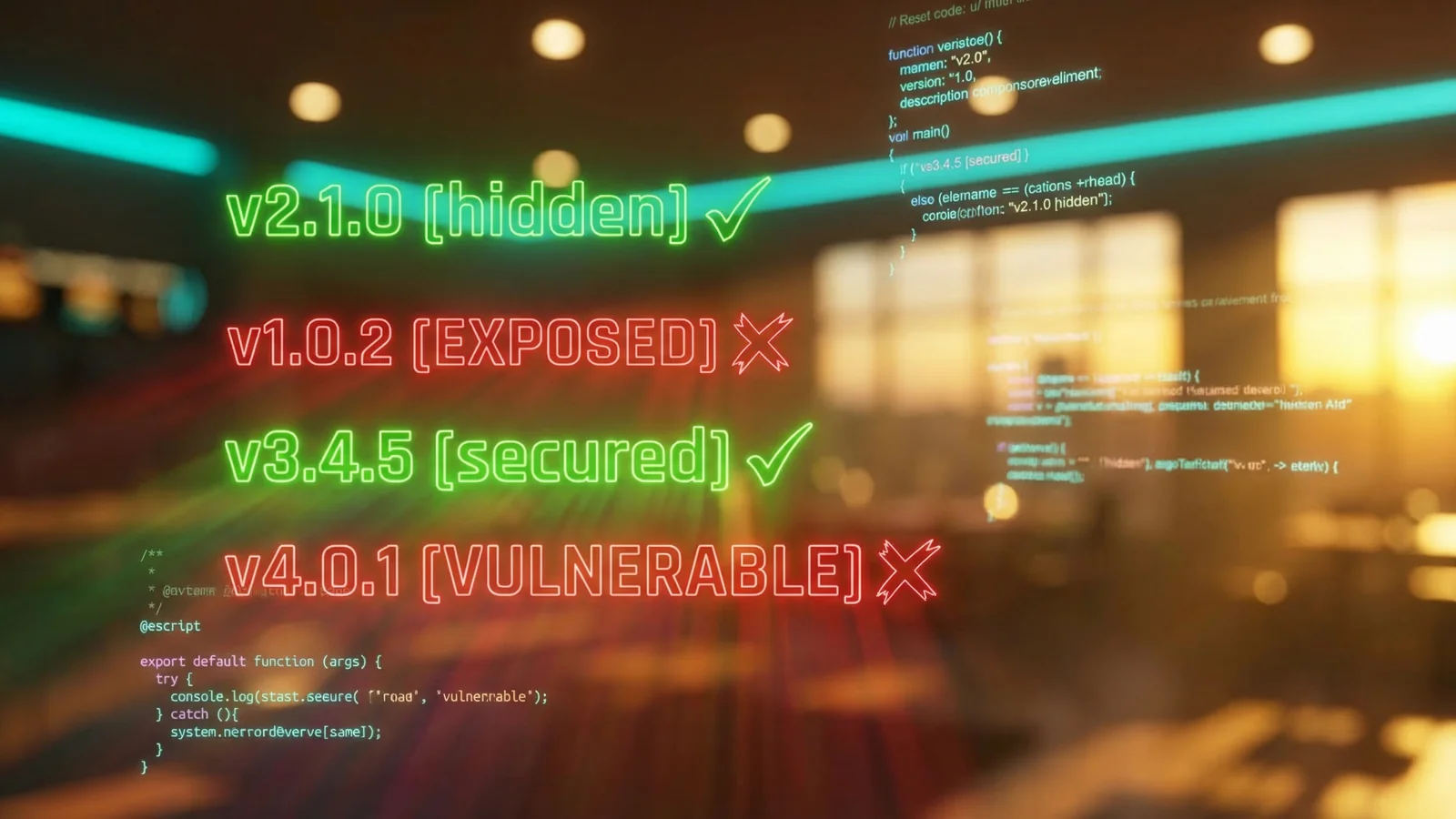
WordPress adds a <meta name="generator"> tag to your page source and includes the version in your RSS feed. The scanner checks both locations plus the default files from Step 6.
Patchstack's 2025 security report found 7,966 new vulnerabilities in the WordPress ecosystem during 2024. That's 22 per day. If an attacker knows you're running WordPress 6.9.1, they can cross-reference that against every known vulnerability for that version. Removing the version number doesn't fix vulnerabilities, but it removes a signpost.
How to fix it:
- Add this to your theme's
functions.php:remove_action('wp_head', 'wp_generator'); - Most security plugins include a "Remove WordPress version" toggle
- The RSS feed version can be filtered with a small code snippet
Step 8: Check PHP Debug Mode
WordPress has a built-in debug mode controlled by the WP_DEBUG constant in wp-config.php. Developers turn it on during development to see error messages. The problem happens when it's left on in production.
With debug mode active, PHP errors display on the front end. Those error messages contain internal file paths, database connection details, and sometimes credentials. It's like leaving your diary open on the counter.
How to fix it:
- Open
wp-config.phpand find theWP_DEBUGline - Set it to:
define( 'WP_DEBUG', false ); - If you need debugging in production, log errors to a file instead:
define( 'WP_DEBUG', true );
define( 'WP_DEBUG_LOG', true );
define( 'WP_DEBUG_DISPLAY', false );
Tip: Managed WordPress hosting providers typically disable debug mode by default on production environments. If you're managing your own server, check this after every staging-to-production deployment.
Step 9: Check Security Headers

Security headers are instructions your server sends to the visitor's browser. They control things like whether your site can be embedded in an iframe (clickjacking prevention), whether inline scripts can execute (XSS prevention), and whether browsers should always use HTTPS (protocol downgrade prevention).
The scanner checks for six headers: Content-Security-Policy, X-Frame-Options, Strict-Transport-Security (HSTS), X-Content-Type-Options, Referrer-Policy, and Permissions-Policy. Most WordPress sites are missing at least three of them.
"Security headers are like seatbelts for your website. While they don't prevent the crash, they reduce the injury."
-- Kathy Zant, WordPress Security Expert, WordCamp US 2019
Zant's analogy is spot on. I've seen sites with firewalls, strong passwords, and updated plugins get compromised through clickjacking because they were missing a single header. For a deeper dive into what each header does and how to grade your setup, run your site through our HTTP Header Inspector or read our header inspector guide.
How to fix it:
- Add headers via your
.htaccessfile or a security plugin - Start with the three highest-impact headers: X-Frame-Options, X-Content-Type-Options, and Strict-Transport-Security
- Content-Security-Policy is the most powerful but also the most likely to break things if misconfigured. Test it in report-only mode first.
Step 10: Check Plugin Versions
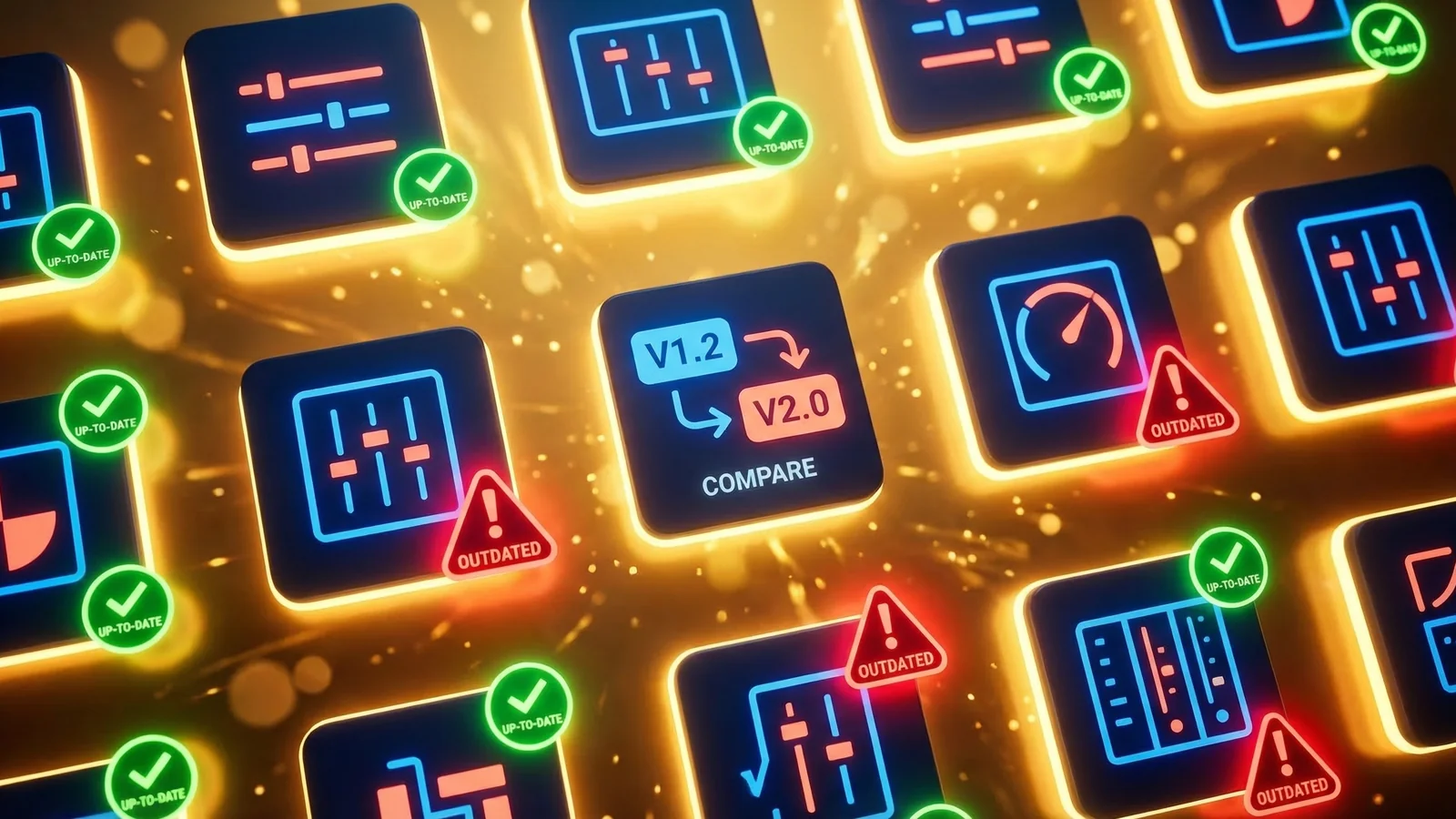
The scanner detects installed plugins from their CSS and JavaScript file URLs (which include version parameters) and from their readme.txt files. It then compares detected versions against the WordPress.org plugin directory to flag outdated ones.
This is the check that matters most. Patchstack's data shows 96% of all WordPress vulnerabilities are in third-party plugins. Not WordPress core. Not themes. Plugins. And 33% of those vulnerabilities had no patch available at the time of public disclosure. 661 vulnerabilities in a single week, with 164 still unpatched, was the reality in February 2026.
How to fix it:
- Update every outdated plugin immediately from your WordPress dashboard
- Remove plugins you're not actively using. Deactivated plugins can still be exploited.
- Check for "Not in repo" flags. These are premium or abandoned plugins that can't be auto-updated from WordPress.org.
- Enable auto-updates for plugins where the developer has a solid track record
Tip: Before updating, take a backup. Managed hosting providers include automated backups and one-click restore. If you're on a budget host without backups, use a free backup plugin first.
Fix and Verify
You've read the report. Now fix what's broken, then prove it worked.
Step 11: Fix the Critical Issues First

Don't try to fix everything at once. Work through the results in order of severity:
- Red (Critical): Exposed login page, active XML-RPC, user enumeration. These are active attack surfaces. Fix them today.
- Amber (Warning): Version leaks, default files, debug mode. These give attackers information. Fix them this week.
- Blue (Info): Missing security headers, plugin updates. These improve your defence in depth. Schedule them.
Each check in the scanner results includes a "Learn more" panel with specific instructions and, where applicable, code snippets you can copy straight into your .htaccess or functions.php. Use them.
For a broader security and compliance review, our WordPress Security and GDPR Checklist covers the internal checks that a scanner can't see from the outside: file permissions, database prefixes, user roles, and GDPR compliance.
Step 12: Re-scan and Confirm Your Grade

Go back to the WordPress Scanner and run it again. Your grade should improve immediately for changes that take effect server-side (like blocking XML-RPC or adding security headers). Some changes, like plugin updates, may take a moment to reflect if your site uses aggressive caching.
If a fix didn't register, clear your site's page cache and try again. CDN caches can also serve stale headers for a few minutes.
Bookmark the scanner and run it once a month. Or after every major plugin update. Or whenever WordPress pushes a security release (which, as we saw in March 2026, can happen three times in 24 hours).
Tip: Pair the WordPress Scanner with our HTTP Header Inspector and Mixed Content Scanner for a more complete picture. Between the three tools, you cover external security posture, browser-level headers, and HTTPS integrity. All free, all instant.
Frequently Asked Questions
Is it safe to scan my WordPress site with an online tool?
Yes. The 365i WordPress Scanner only reads publicly visible information, the same data any visitor or search engine sees. It never attempts to log in, upload files, or modify your site in any way. It's a read-only external check.
Do I need to install a plugin to check WordPress security?
Not for an external scan. The 365i scanner works from your browser with no plugin or account required. Plugins are useful for internal checks (file integrity, malware scanning) but the external view shows what attackers actually see, and that's what this tool provides.
What is XML-RPC and why should I disable it?
XML-RPC is a WordPress protocol originally designed for remote publishing from desktop and mobile apps. Attackers exploit its system.multicall method to try hundreds of passwords in a single request, bypassing login rate limiters. Unless you use Jetpack or the old WordPress mobile app, disable it.
How do I hide my WordPress version number?
Add remove_action('wp_head', 'wp_generator'); to your theme's functions.php file. This removes the meta generator tag from your page source. Also delete readme.html from your WordPress root and configure your security plugin to remove the version from RSS feeds.
What security headers does WordPress need?
At minimum: X-Frame-Options (prevents clickjacking), X-Content-Type-Options (prevents MIME sniffing), and Strict-Transport-Security (forces HTTPS). Content-Security-Policy is the most powerful header but needs careful configuration. Our HTTP Header Inspector grades your current setup and shows what's missing.
How often should I run a WordPress security scan?
Once a month as a baseline. Also scan after installing or updating major plugins, after WordPress core updates, and after any security incident in the WordPress ecosystem. When WordPress pushes emergency patches, scan the same day.
Will a security plugin replace the need for manual checks?
Security plugins handle internal defence (firewall rules, malware scanning, login limiting). An external scanner shows what's visible from the outside, a different perspective entirely. Both are valuable. Think of a plugin as the lock on your door, and the scanner as walking around the building to check which windows are open.
What does an A+ WordPress security grade mean?
An A+ means all eight external checks passed. Your login page has protection, XML-RPC is disabled or restricted, user enumeration is blocked, default files are removed, version numbers are hidden, debug mode is off, security headers are present, and your plugins are up to date. It's the external posture, not a guarantee against all attacks, but it means you've closed the obvious doors.
Scan your WordPress site right now
Eight security checks, 30 seconds, zero cost. See what attackers see before they use it against you.
Open the WordPress ScannerSources
Published: · Last reviewed: · Written by: Mark McNeece, Founder & Managing Director, 365i
Editorially reviewed by: Mark McNeece on · Our editorial standards